

 Italiano
 Français
 Deutsch
 Español
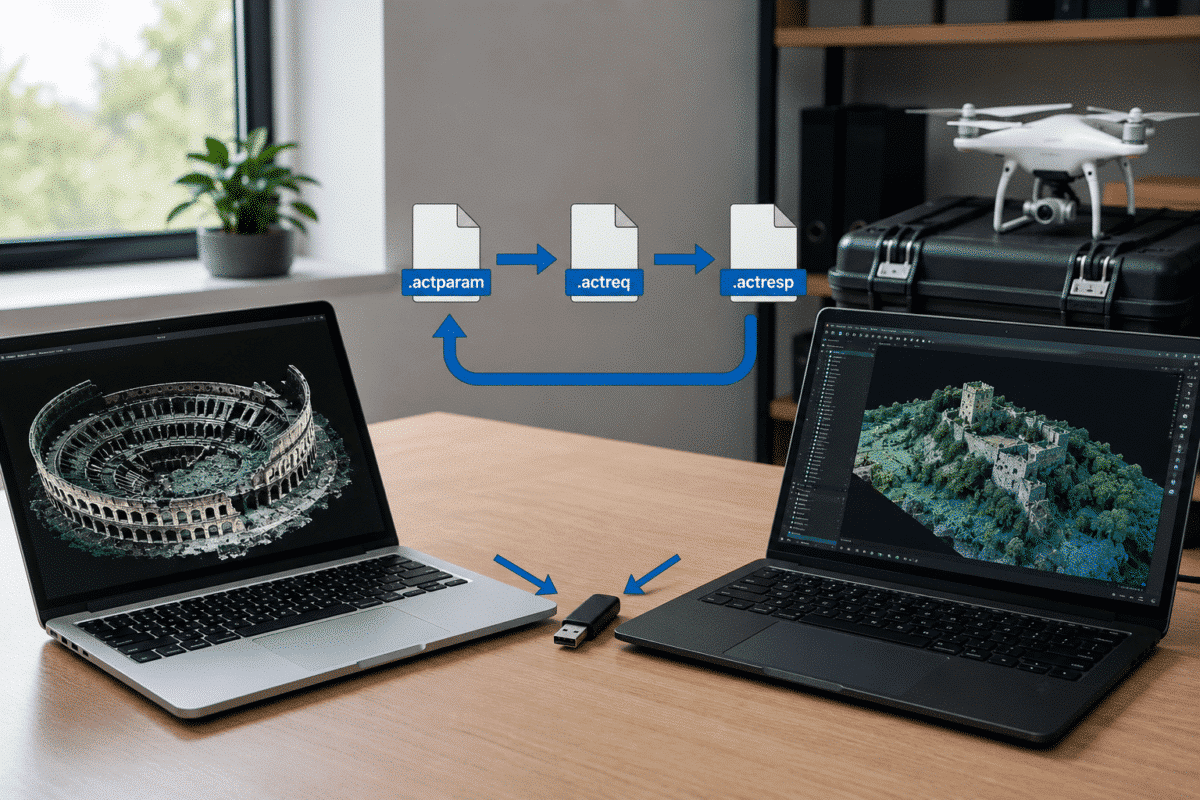
If your workstation cannot connect to the Internet, you can still activate Agisoft Metashape Professional offline. This is particularly useful for secure workstations, air-gapped computers, government environments, research laboratories, remote processing systems and organizations with strict network policies.
Agisoft provides an official offline activation procedure that allows a Metashape node-locked license to be activated without giving the target computer Internet access.
The process requires temporary access to a second computer or device with an Internet connection. Three small activation files are transferred between the online and offline computers until the license is installed.
This guide explains the complete Agisoft Metashape offline activation procedure for Windows, macOS and Linux, including the purpose of the ACTPARAM, ACTREQ and ACTRESP files and how to deactivate an offline license when necessary.
Can Agisoft Metashape Be Activated Without Internet Access?
Yes. Agisoft Metashape Professional supports offline activation for computers that cannot access the Internet.
The Metashape workstation itself does not need to connect to the Agisoft activation server.
Instead, you use another Internet-connected computer to communicate with the Agisoft activation service and transfer the required activation files to and from the offline workstation.
This makes offline activation suitable for environments such as:
- Air-gapped workstations
- Government and defense networks
- Secure research laboratories
- Industrial processing computers
- Field workstations without Internet access
- Corporate networks with restrictive firewalls
- Offline Linux processing systems
What You Need Before Starting
Before beginning the offline activation process, make sure you have:
- Agisoft Metashape Professional installed on the offline computer
- A valid Metashape Professional node-locked activation key
- Access to another computer or device with Internet access
- A way to transfer small files between the two computers
Files can normally be transferred using a USB drive or another transfer method permitted by your organization’s security policy.
You do not need to transfer the Metashape application itself between computers. Only the activation files need to move between the offline and online systems.
Understanding ACTPARAM, ACTREQ and ACTRESP Files
The current Metashape offline activation workflow uses three main file types:
ACTPARAM File
The .actparam file contains the activation parameters generated from your Metashape license key.
It is created on a computer with Internet access and then transferred to the offline Metashape workstation.
ACTREQ File
The .actreq file is the activation request generated by the computer where Metashape will actually be used.
This is important because the request must originate from the workstation that needs the license.
The ACTREQ file is transferred back to an Internet-connected computer and submitted to the Agisoft activation service.
ACTRESP File
The .actresp file is the activation response generated after the ACTREQ file has been processed.
This file is transferred back to the offline computer and installed in Metashape to complete the activation.
Agisoft Metashape Offline Activation Workflow
The complete process can be summarized as:
- Create the ACTPARAM file on an Internet-connected computer.
- Transfer ACTPARAM to the offline workstation.
- Use Metashape to generate the ACTREQ file.
- Transfer ACTREQ to the Internet-connected computer.
- Generate the ACTRESP file using the Agisoft activation service.
- Transfer ACTRESP back to the offline workstation.
- Install the response file in Metashape.
Let’s go through each step in detail.
Step 1: Create the Activation Parameters File
On a computer with Internet access, open the official Agisoft offline activation page:
https://activate.agisoft.com/activate-offline
Enter your valid Agisoft Metashape Professional activation key.
Then select:
Save Activation Parameters
The activation service will create a file with the following extension:
.actparam
For example:
activation.actparam
Save this file and transfer it to the computer where Metashape Professional needs to be activated.
Step 2: Open the Offline Activation Dialog in Metashape
On the computer without Internet access, start Agisoft Metashape Professional.
Open:
Help > Activate Product
In the Agisoft Metashape Professional Activation dialog, select:
Activate Metashape Professional offline
Then click OK.
Metashape will open the offline activation workflow.
Step 3: Load the ACTPARAM File
Browse to the .actparam file created on the Internet-connected computer.
Select the file inside the Metashape offline activation dialog.
Metashape now has the information required to create a machine-specific activation request.
Select:
Save Activation Request…
Metashape will generate a new file with the extension:
.actreq
For example:
activation_request.actreq
Save this file in a location that can be transferred to the computer with Internet access.
Step 4: Process the ACTREQ File Online
Transfer the .actreq file to your Internet-connected computer.
Return to:
https://activate.agisoft.com/activate-offline
Locate the section for the activation request and select your ACTREQ file.
Then choose:
Save Activation Response
The Agisoft activation service will generate the final response file:
.actresp
For example:
activation.actresp
Save this file and transfer it back to the offline Metashape workstation.
Step 5: Install the ACTRESP File
Return to the computer where Agisoft Metashape Professional is installed.
Open the offline activation dialog again if it is no longer visible:
Help > Activate Product
Select the offline activation option and click:
Install License…
Browse to the .actresp file generated in the previous step and select it.
Metashape will install the activation response and complete the node-locked license activation.
The workstation can now run Metashape Professional without requiring an Internet connection for normal license use.
Offline Activation on Windows
The offline activation process on Windows follows exactly the workflow described above.
Install Metashape Professional on the Windows workstation, then use:
Help > Activate Product > Activate Metashape Professional offline
You will then exchange the ACTPARAM, ACTREQ and ACTRESP files between the Windows workstation and another Internet-connected device.
The offline workstation itself does not need to be temporarily connected to the Internet.
Offline Activation on macOS
Agisoft Metashape offline activation on macOS uses the same activation workflow.
Open Metashape Professional and select:
Help > Activate Product
Choose the offline activation option, load the ACTPARAM file, save the ACTREQ file and finally install the ACTRESP file after processing it on the Internet-connected computer.
This allows a Mac workstation to remain isolated from the Internet throughout the activation procedure.
Offline Activation on Linux
The same procedure can also be used for Metashape Professional on Linux.
After starting the graphical Metashape application, use:
Help > Activate Product
and select offline activation.
Transfer the ACTPARAM file to the Linux system, generate the ACTREQ file, process it using the Agisoft activation website on another computer and then install the resulting ACTRESP file.
This can be particularly useful for Linux photogrammetry workstations and processing systems installed inside restricted networks.
Windows vs macOS vs Linux: Is the Procedure Different?
For current Metashape Professional node-locked licenses, the basic offline activation process is essentially the same across all three operating systems.
| Step | Windows | macOS | Linux |
|---|---|---|---|
| Install Metashape Professional | Yes | Yes | Yes |
| Open Help > Activate Product | Yes | Yes | Yes |
| Load ACTPARAM | Yes | Yes | Yes |
| Generate ACTREQ | Yes | Yes | Yes |
| Process ACTREQ on online computer | Yes | Yes | Yes |
| Install ACTRESP | Yes | Yes | Yes |
This consistency makes it possible for organizations using mixed operating systems to maintain a standardized offline activation procedure.
Can Metashape Remain Offline After Activation?
Yes. Offline activation is specifically designed for computers that cannot communicate directly with the activation server.
Once the node-locked license has been successfully activated, the workstation can be used without requiring a permanent Internet connection for the activation process.
This is useful when Metashape is deployed on systems where network access is intentionally disabled.
How to Deactivate Metashape on an Offline Computer
If you need to move a node-locked license to another workstation, do not simply uninstall Metashape or delete its licensing files.
The license should first be properly deactivated.
For a computer without Internet access, Metashape can generate an offline deactivation request.
The general workflow is:
- Generate the deactivation request using the Metashape software interface on the offline workstation.
- Transfer the deactivation request to a computer with Internet access.
- Open the Agisoft offline activation page.
- Upload the deactivation request in the appropriate section.
- Complete the deactivation online.
Once deactivation has been completed correctly, the license can be activated on another compatible computer according to the applicable license terms.
Do Not Delete Licensing Data Before Deactivation
One of the most important precautions when working with offline licenses is to complete the proper deactivation procedure before reformatting a workstation, deleting licensing data or making major changes to the system.
If the local licensing information is removed before the activation is correctly released, normal license transfer may become more complicated.
For workstations that are scheduled for replacement or reinstallation, plan the license deactivation before wiping the system.
What About Floating Licenses?
The procedure described in this guide primarily covers Metashape Professional 2.x node-locked offline activation.
Floating licenses use the Agisoft License Server and have a separate activation workflow.
A floating license server can also be activated offline, but the ACTPARAM, ACTREQ and ACTRESP files are processed through the Agisoft License Server web interface rather than directly through the Metashape workstation.
If your organization has multiple users or workstations, a floating license may be more appropriate than activating individual node-locked licenses.
Common Offline Activation Problems
The ACTPARAM File Is Not Recognized
Make sure the parameters file was created using the correct Metashape activation key and that the file has not been renamed with an incorrect extension.
The ACTREQ Was Created on the Wrong Computer
The activation request should be generated on the computer where the Metashape license will actually be used.
Do not generate the machine-specific request on a different workstation.
The ACTRESP File Does Not Install
Confirm that the ACTRESP file corresponds to the ACTREQ generated by that specific workstation and activation process.
A response from a different activation request should not be treated as interchangeable.
The Computer Was Reinstalled Before Deactivation
If the system was wiped or important licensing information was removed before the license was deactivated, contact Agisoft support for assistance rather than repeatedly attempting activation.
Agisoft Metashape Offline Activation: Final Checklist
For a successful offline activation:
- Install Metashape Professional on the final workstation first.
- Use the correct node-locked activation key.
- Create the ACTPARAM file using an Internet-connected computer.
- Generate the ACTREQ file on the computer where Metashape will actually run.
- Process the ACTREQ through the Agisoft offline activation service.
- Transfer the resulting ACTRESP file back to the offline computer.
- Use Install License to complete the activation.
- Keep your activation key stored securely.
- Deactivate the license properly before replacing or reformatting the workstation.
With this workflow, Agisoft Metashape Professional can be activated and used on Windows, macOS or Linux workstations without direct Internet access, making it suitable for professional environments where network connectivity is unavailable, restricted or intentionally prohibited.
Frequently Asked Questions
Can Agisoft Metashape be activated completely offline?
Yes. The computer running Metashape does not need Internet access. A second Internet-connected computer is used to process the activation files.
What files are used for Metashape offline activation?
Current Metashape 2.x node-locked offline activation uses an ACTPARAM activation parameters file, an ACTREQ activation request file and an ACTRESP activation response file.
Does offline activation work on Windows?
Yes. Metashape Professional can be activated offline on Windows using the Help > Activate Product dialog and the ACTPARAM, ACTREQ and ACTRESP workflow.
Can I activate Metashape offline on macOS?
Yes. The same node-locked offline activation procedure is available for Metashape Professional running on macOS.
Can Metashape be activated offline on Linux?
Yes. Linux Metashape Professional workstations can also use the offline activation workflow without direct Internet access.
Do I need Internet access after offline activation?
The purpose of offline activation is to allow the activated workstation to operate without direct access to the online activation service.
Can I move an offline Metashape license to another computer?
A node-locked license can be transferred, but the existing activation should first be properly deactivated. Offline computers can generate a deactivation request that is completed using another Internet-connected device.
Is floating license offline activation the same?
No. Metashape Professional 2.x floating licenses use Agisoft License Server and a separate server-based offline activation procedure.