

 Italiano
 Français
 Deutsch
 Español
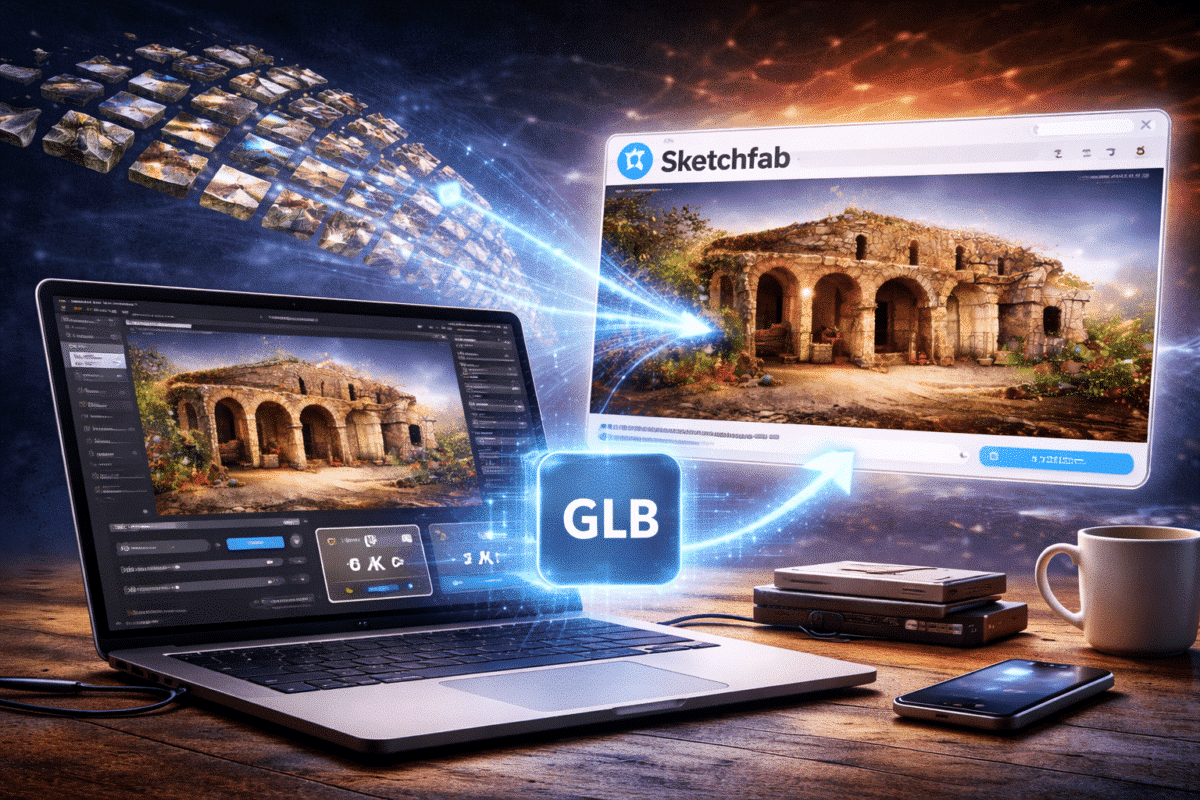
Photogrammetry has become one of the most effective methods for creating realistic 3D models from photographs. Software such as Agisoft Metashape allows users to reconstruct detailed geometry and textures from drone imagery, DSLR photos, or smartphone images.
However, the models generated by photogrammetry software are often extremely detailed. A typical reconstruction can contain millions of polygons and very large texture maps. While this level of detail is ideal for analysis and archival purposes, it can create challenges when publishing models on web platforms such as Sketchfab.
Sketchfab is widely used for sharing interactive 3D models online, but web visualization requires models that are optimized for real-time rendering. Without proper optimization, photogrammetry models may load slowly, consume excessive bandwidth, or exceed platform limitations.
In this guide, we explain how to prepare and optimize 3D models generated in Agisoft Metashape so they can be displayed efficiently on Sketchfab while maintaining high visual quality.
Understanding Sketchfab Limitations
Before optimizing a photogrammetry model, it is important to understand the constraints of web-based 3D viewers.
Sketchfab renders models in real time within a browser using WebGL technology. This means that performance depends heavily on the complexity of the model.
Large photogrammetry models can include:
- Millions of polygons
- Large texture maps (8K or higher)
- Multiple texture layers
- Complex mesh structures
Such models may work well on powerful workstations but can cause performance issues when viewed online. Optimization is therefore essential to ensure smooth interaction for viewers.
Reduce Polygon Count
The first and most important step in optimizing a photogrammetry model is reducing the polygon count.
Metashape models often contain tens of millions of polygons, which is far more than necessary for web visualization.
To reduce mesh complexity in Metashape:
- Open the mesh model in the workspace
- Select Tools → Mesh → Decimate Mesh
- Choose a target face count
For Sketchfab, models typically perform well when reduced to:
- 100k – 500k polygons for small objects
- 500k – 1M polygons for complex scenes
Decimation algorithms preserve the overall shape of the model while significantly reducing file size.
Optimize Texture Resolution
Texture maps play a critical role in the visual quality of photogrammetry models. However, extremely high-resolution textures can slow down loading times in web viewers.
Metashape often generates textures with resolutions such as:
- 4096 × 4096
- 8192 × 8192
- 16384 × 16384
While these textures contain a great deal of detail, they may not be necessary for web viewing.
For Sketchfab, it is usually recommended to reduce texture resolution to:
- 2K textures for smaller objects
- 4K textures for high-detail scenes
This significantly reduces file size while preserving visual quality.
Use Texture Atlases Efficiently
Photogrammetry models sometimes contain multiple texture files. While this approach works well for editing, it can increase loading times in web viewers.
Using a single texture atlas whenever possible simplifies the model structure and improves performance.
Metashape allows users to generate optimized texture atlases during the texture building stage by selecting appropriate texture size and atlas settings.
Reducing the number of texture files can greatly improve rendering efficiency in Sketchfab.
Clean the Mesh Geometry
Photogrammetry reconstructions often contain unwanted geometry that should be removed before publishing.
Common artifacts include:
- Floating polygons
- Noise around edges
- Background surfaces
- Incomplete geometry
Cleaning the mesh improves both visual presentation and rendering performance.
In Metashape, unwanted geometry can be removed using selection tools within the model editing workspace.
Retopology and Mesh Simplification
For high-end visualization projects, retopology techniques can further improve mesh structure.
Retopology reorganizes the mesh into a more efficient topology while preserving important surface details.
Although this process is more common in 3D modeling software such as Blender or ZBrush, it can significantly improve rendering performance in real-time environments.
For most Sketchfab projects, simple decimation within Metashape is sufficient.
Exporting Models from Metashape
Once the model has been optimized, it must be exported in a format supported by Sketchfab.
Common export formats include:
- OBJ
- FBX
- GLTF / GLB
GLTF and GLB formats are particularly well suited for web-based applications because they are designed for efficient real-time rendering.
During export, ensure that textures are included and properly referenced.
Uploading the Model to Sketchfab
After exporting the optimized model, the next step is uploading it to Sketchfab.
The platform provides a straightforward upload process:
- Log in to your Sketchfab account
- Select Upload
- Choose the exported model file
- Wait for processing to complete
Once uploaded, Sketchfab automatically generates an interactive viewer that allows users to explore the model directly within their web browser.
Adjust Viewer Settings
Sketchfab provides several visualization settings that can improve the appearance of photogrammetry models.
Important settings include:
- Lighting and environment maps
- Shadow settings
- Post-processing effects
- Background environments
Careful adjustment of these parameters can dramatically enhance the final presentation.
Testing Performance
Before publishing a model publicly, it is important to test its performance.
Try viewing the model on different devices, including:
- Desktop computers
- Laptops
- Mobile devices
If the model loads slowly or appears laggy, consider further reducing polygon count or texture resolution.
Achieving the right balance between quality and performance is essential for a good user experience.
Applications of Sketchfab Photogrammetry Models
Publishing photogrammetry models on Sketchfab opens many possibilities for sharing and presenting 3D content.
Common applications include:
- Digital heritage archives
- Archaeological documentation
- Virtual museums
- Architectural visualization
- Education and research
The ability to share interactive models online makes photogrammetry data accessible to a much wider audience.
Conclusion
Photogrammetry models generated with Agisoft Metashape often contain extremely high levels of detail, which can make them challenging to display online without optimization.
By reducing polygon counts, optimizing textures, cleaning mesh geometry, and exporting models in efficient formats, it is possible to create Sketchfab-ready models that maintain visual quality while performing smoothly in web browsers.
With proper optimization techniques, photogrammetry models can be transformed into interactive online experiences that allow viewers to explore complex 3D scenes from anywhere in the world.
