

 Italiano
 Français
 Deutsch
 Español
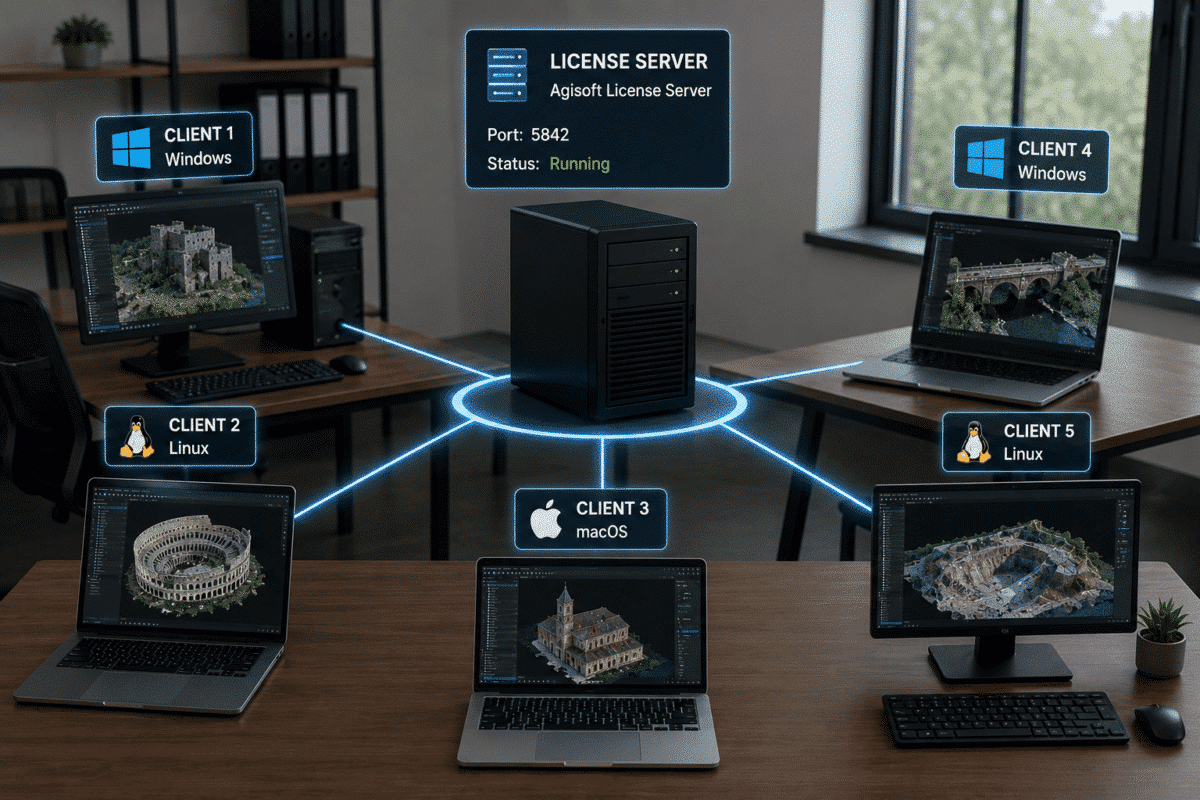
Setting up an Agisoft Metashape Floating License Server is the recommended solution for companies, universities, laboratories and organizations that need to use Metashape Professional across multiple computers.
Unlike a node-locked license, which is activated on one workstation at a time, a floating license is managed centrally by a license server. Metashape Professional can be installed on multiple client computers, while the license server controls how many systems can run the software simultaneously.
With Metashape 2.x, Agisoft introduced its own Agisoft License Server, replacing the older licensing system used for Metashape 1.x.
This guide explains how to install and configure the Agisoft Metashape Floating License Server for Metashape 2.x, activate floating licenses, connect Windows, macOS and Linux clients and troubleshoot the most common network licensing problems.
How Does an Agisoft Metashape Floating License Work?
A floating license is designed for environments where several computers may need access to Metashape Professional but not necessarily at the same time.
One computer is designated as the license server. Agisoft License Server runs on that machine and manages the available Metashape Professional licenses.
Metashape can then be installed on multiple client computers.
The number of computers that can run Metashape simultaneously depends on the number of floating licenses purchased.
For example, if your organization owns five floating licenses, Metashape Professional can be installed on many workstations, but normally only five systems can use those licenses simultaneously.
When Should You Use a Floating License?
An Agisoft Metashape floating license is particularly useful for:
- Companies with multiple photogrammetry workstations
- Surveying and engineering departments
- Universities and computer laboratories
- Research institutions
- GIS departments
- Organizations with shared workstations
- Processing facilities with multiple users
- Mixed Windows, Linux and macOS environments
Centralized licensing can make license management considerably easier because individual activation keys do not need to be permanently assigned to each workstation.
Metashape 2.x Uses Agisoft License Server
It is important to distinguish the current licensing system from older Metashape installations.
Metashape Professional 2.0 and newer versions use Agisoft License Server.
Older Metashape 1.x installations used a different floating license system based on RLM.
If you are setting up a new Metashape 2.x floating license environment, follow the current Agisoft License Server procedure rather than older RLM instructions that may still appear in search results or internal documentation.
Step 1: Choose the License Server Computer
The first step is to choose a computer that will act as the license server.
This machine does not need to be the workstation where photogrammetry processing takes place.
Ideally, the server should:
- Remain powered on while users need Metashape
- Have a stable network connection
- Use a predictable IP address or hostname
- Be reachable by all required Metashape client computers
- Run continuously in multi-user environments
A server with a static or reserved IP address generally simplifies configuration because client machines can always connect to the same address.
Step 2: Download Agisoft License Server
Download the current Agisoft Floating License Server (Agisoft FLS) package for the operating system used by your server.
Agisoft provides versions for:
- Windows
- Linux
- macOS
Extract the downloaded archive to an appropriate permanent location on the server.
If you plan to configure the license server as a Windows system service, avoid storing the executable inside a user profile directory and avoid paths containing spaces.
Step 3: Start Agisoft License Server
Run the agisoft-fls executable on the server.
By default, Agisoft License Server uses port:
5842
If you want the license server to listen on a specific server address, it can be started using the --host parameter.
For example:
agisoft-fls --host 192.168.10.200:5842
Replace the example IP address with the actual IP address assigned to your server.
If no custom port is specified, Agisoft License Server uses port 5842 by default.
Step 4: Open the License Server Web Interface
Agisoft License Server includes a browser-based administration interface.
Open a browser and enter:
http://SERVER-IP:5842
For example:
http://192.168.10.200:5842
The first time you access the server interface, you will be asked to create an administrator login and password.
After logging in, the web interface can be used to activate, monitor and manage your Metashape floating licenses.
Step 5: Activate the Floating License Online
If the license server has Internet access, activation is straightforward.
From the Agisoft License Server web interface:
- Open Licenses.
- Click Activate.
- Enter your Metashape floating license activation key.
- Enter the number of licenses you want to activate.
- Click Activate.
After successful activation, the Licenses page will show the product and the number of available floating licenses.
If you have an older separate FLS activation key from a previous licensing system, it is not required for the current Agisoft License Server. Use the actual Metashape floating license activation key.
How to Activate the Floating License Offline
Agisoft also supports offline floating license activation when the license server itself cannot access the Internet.
You will need another computer with Internet access.
Step 1: Generate ACTPARAM
From an Internet-connected computer, open the official Agisoft offline activation service:
https://activate.agisoft.com/activate-offline
Enter the floating license activation key and save the:
.actparam file.
Step 2: Generate ACTREQ on the License Server
Transfer the ACTPARAM file to the offline license server.
Open:
http://SERVER-IP:5842
Navigate to Licenses > Activate and select the ACTPARAM file.
Specify the number of floating licenses to activate, or leave the count empty if all available licenses should be activated.
Then save the:
.actreq activation request file.
Step 3: Generate ACTRESP
Transfer the ACTREQ file back to an Internet-connected computer.
Upload it to the Agisoft offline activation service and save the resulting:
.actresp file.
Step 4: Install the License Response
Transfer the ACTRESP file back to the license server.
Open the Agisoft License Server web interface, return to the activation page and install the response file.
The floating license is now available even though the license server itself was never connected directly to the Internet.
Step 6: Connect Metashape Client Computers
Install Agisoft Metashape Professional on each workstation that needs to use the floating license.
When the client and license server are on the same network, Metashape 2.x normally attempts to discover Agisoft License Server automatically.
The automatic discovery mechanism uses network broadcast.
If discovery works correctly, no manual license server configuration may be required on the client workstation.
Default Ports Used by Agisoft License Server
Two network ports are particularly relevant:
| Purpose | Port |
|---|---|
| Agisoft License Server connection / web interface | 5842 |
| Automatic server discovery | UDP 5353 |
If client computers cannot find the license server automatically, network segmentation, firewall rules or routing between different subnets may prevent automatic discovery.
In this situation, the license server address can be specified manually.
Method 1: Use the AGISOFT_FLS Environment Variable
Create the following environment variable on the client computer:
AGISOFT_FLS
The value should use this format:
SERVER-IP:PORT
For example:
192.168.10.200:5842
After setting the environment variable, restart Metashape so it can use the specified license server.
Method 2: Create a .LIC File
Another method is to create a text file such as:
server.lic
with the following content:
[license_server]
host = 192.168.10.200

port = 5842
Replace the IP address with the actual license server address.
The file can be placed in the Metashape Professional installation directory or in the appropriate licensing directory.
Windows
C:/ProgramData/Agisoft/Licensing/licenses/
Linux
/var/tmp/agisoft/licensing/licenses/
macOS
/Library/Application Support/Agisoft/Licensing/licenses/
The .LIC configuration method is supported by Metashape Professional starting from version 2.0.1.
Run Agisoft License Server as a System Service
For a production environment, the license server should normally start automatically when the server operating system starts.
Agisoft therefore recommends configuring FLS as a background system service.
This avoids having to manually launch Agisoft License Server after every reboot.
Agisoft provides service configuration procedures for:
- Windows Services
- Linux systemd
- macOS launchd
An important recommendation is to configure the system service before activating the floating licenses.
If licenses were already activated while Agisoft FLS was running manually, Agisoft recommends deactivating them, configuring and starting the service and then activating the licenses again.
How to Check Available Floating Licenses
Open the Agisoft License Server web interface:
http://SERVER-IP:5842
The server interface allows administrators to review activated licenses and monitor license usage.
When a Metashape client starts using a floating license, one seat from the available pool becomes occupied.
When the client releases the license, the seat becomes available to another workstation.
Can a Floating License Be Used Away from the Office?
Yes. Metashape Professional includes a Borrow License function.
This can be useful when a laptop normally obtains a floating license from the company network but needs to be used temporarily in the field without access to the license server.
First connect the laptop to the license server normally.
Then open:
Help > Activate Product
and select:
Borrow License
A floating license can be borrowed for a period from 1 to 30 days.
During this time, that license is reserved for the laptop and is unavailable to other clients.
When the laptop reconnects to the network, the license can be returned manually using Return License, or it will return automatically when the borrowing period expires.
Common Metashape Floating License Problems
Metashape Cannot Find the License Server
First check that Agisoft License Server is actually running.
Then verify that you can open:
http://SERVER-IP:5842
from the client network.
If the server is reachable but automatic discovery does not work, configure the AGISOFT_FLS environment variable or create a server.lic file.
Clients Are on Different Subnets
Automatic network discovery may not work across all routed networks or VLAN configurations.
In this case, explicitly specifying the license server IP address is usually preferable to relying on automatic discovery.
No License Is Available
Check whether all purchased floating seats are already in use.
A floating license pool limits concurrent Metashape usage according to the number of licenses activated on the server.
The Server Works Until It Is Rebooted
If Agisoft FLS was started manually, it may not restart automatically after the operating system reboots.
Configure Agisoft License Server as a system service for a permanent production setup.
How to Move the Floating License Server
If the license server must be replaced, the floating licenses should be properly deactivated from the original server before activating them on the new machine.
Do not simply copy the server installation or delete the existing machine without first handling the license activation correctly.
Agisoft License Server supports both online and offline deactivation workflows.
Agisoft Metashape Floating License Server: Recommended Setup
For a reliable professional deployment:
- Use a stable server with a fixed or reserved IP address.
- Configure Agisoft FLS as a system service before license activation.
- Use the default port 5842 unless your network requires another port.
- Allow client systems to reach the license server.
- Use automatic discovery on simple local networks.
- Use AGISOFT_FLS or a .LIC file when automatic discovery does not work.
- Monitor the number of available concurrent licenses.
- Use license borrowing only when offline field work is required.
- Properly deactivate licenses before replacing the server.
With the correct configuration, an Agisoft Metashape Floating License Server provides a flexible and centralized licensing environment for organizations operating multiple photogrammetry workstations.
Metashape Professional can be installed across the required computers while the server automatically manages the available concurrent licenses, making floating licensing particularly suitable for companies, universities, laboratories and enterprise geospatial teams.
Frequently Asked Questions
What port does Agisoft Metashape Floating License Server use?
Agisoft License Server uses port 5842 by default. Metashape also uses UDP port 5353 for automatic discovery of license servers on the network.
Can Metashape be installed on more computers than the number of floating licenses?
Yes. A floating license allows Metashape to be installed on multiple computers. The number of systems that can run the software simultaneously is limited by the number of floating licenses purchased.
Does Metashape automatically find the floating license server?
Normally, Metashape Professional 2.x can automatically discover a license server on the same network. If discovery does not work, the server can be specified using the AGISOFT_FLS environment variable or a .LIC configuration file.
Can Agisoft License Server run on Linux?
Yes. Agisoft provides Floating License Server packages for Windows, Linux and macOS.
Can the license server operate without Internet access?
Yes. Floating licenses can be activated offline using ACTPARAM, ACTREQ and ACTRESP files generated through the official Agisoft offline activation service.
Can I use a floating license on a laptop away from the network?
Yes. Metashape Professional allows a floating license to be borrowed for offline use for a period between 1 and 30 days.
Should Agisoft License Server run as a service?
For permanent deployments, yes. Running the license server as a system service allows it to start automatically when the server operating system starts.