

 Italiano
 Français
 Deutsch
 Español
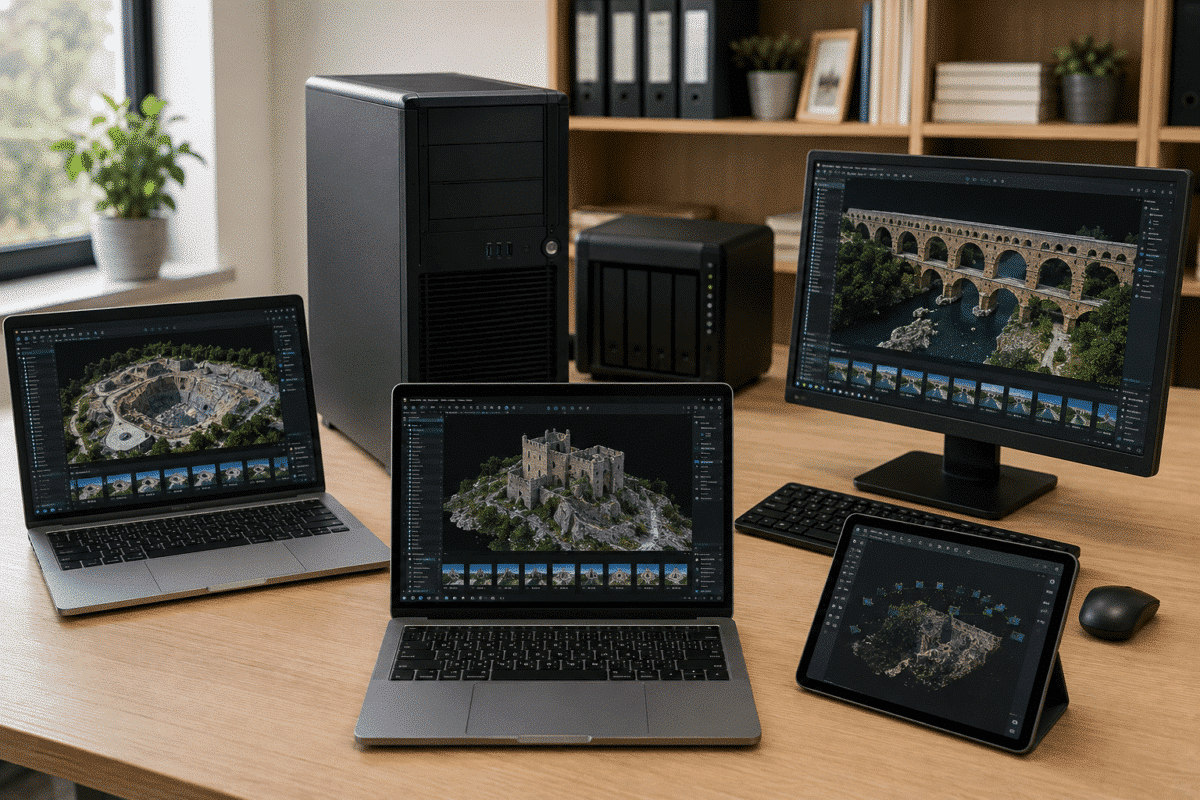
One of the most common questions from new Agisoft Metashape users is: Can I install Agisoft Metashape on multiple computers?
The answer depends on the type of license you own.
With a node-locked license, one license can be activated on only one computer at a time. However, the license is rehostable, which means you can deactivate it on one workstation and activate it on another when required.
With a floating license, Metashape Professional can be installed on multiple computers and a central license server distributes the available licenses. The number of computers that can run Metashape simultaneously corresponds to the number of floating seats purchased.
This guide explains how Agisoft Metashape licensing on multiple computers works, how to transfer a node-locked license to another workstation and when a floating license is the better solution.
Can Agisoft Metashape Be Installed on More Than One Computer?
It is important to distinguish between installing the software and activating the license.
The Metashape installer can be downloaded for compatible computers, but your license type determines how many machines can actually run the licensed software at the same time.
Agisoft offers two main licensing options:
- Node-Locked License
- Floating License
These two license types are designed for different deployment scenarios.
How Does a Metashape Node-Locked License Work?
A Metashape node-locked license is designed to be activated on one computer at a time.
This means that if you purchase one node-locked license, you cannot use the same activation simultaneously on your desktop workstation and your laptop.
However, the license is rehostable.
If you need to move Metashape to another computer, you can deactivate the license on the current workstation and then activate the same license key on the new machine.
This makes a node-locked license suitable for users who normally work from one primary computer but occasionally replace or change their workstation.
Can I Use One Metashape License on a Desktop and Laptop?
Yes, but not simultaneously with a single node-locked license.
For example, suppose you normally process photogrammetry projects on a powerful office workstation but occasionally need Metashape on a laptop.
You can:
- Deactivate the license on the office workstation.
- Activate the same license on the laptop.
- Use Metashape on the laptop.
- Deactivate it from the laptop when finished.
- Reactivate it on the office workstation.
The important point is that the same node-locked license should not remain activated on both computers at the same time.
How to Transfer a Metashape License to Another Computer
Agisoft provides a standard activation and deactivation procedure for transferring node-locked licenses.
Step 1: Deactivate the Old Computer
On the computer where Metashape is currently activated, open:
Help > Activate Product
Then click:
Deactivate
Confirm the deactivation.
Once the license has been successfully released, it can be activated on another computer.
Step 2: Install Metashape on the New Computer
Download and install the appropriate version of Agisoft Metashape on the new workstation.
Metashape is available for:
- Windows
- macOS
- Linux
A license transfer is therefore not necessarily limited to two computers running the same operating system, provided the version and system configuration are compatible with the applicable Metashape license and software requirements.
Step 3: Activate the License on the New Computer
Start Metashape on the new computer and open:
Help > Activate Product
Enter your existing activation key and complete the activation.
The license is now associated with the new workstation.
Is There a Limit on How Many Times I Can Transfer My Metashape License?
Agisoft states that the number of activation and deactivation operations is not effectively limited for normal manual license transfer scenarios.
This means that users who legitimately need to move a node-locked license between their own workstations can use the standard deactivate-and-activate procedure as required.
However, this should not be confused with simultaneous multi-computer use.
Repeatedly transferring one license between computers is different from activating or operating the same node-locked license concurrently on several machines.
Do I Need to Deactivate Metashape Before Replacing My Computer?
Yes, whenever possible.
If you are replacing, reformatting or retiring a workstation, deactivate Metashape before removing the operating system or disposing of the computer.
The same precaution is recommended before major hardware changes or operating system updates that could affect the machine identification used by the licensing system.
Use:
Help > Activate Product > Deactivate
before performing the upgrade.
This releases the activation cleanly and allows the license to be activated again after the system changes are complete.
What Happens If My Old Computer Has Failed?
If a computer suffers a hardware failure before you have the opportunity to deactivate Metashape, the normal deactivation procedure may no longer be possible.
In this situation, do not attempt to bypass the licensing system or repeatedly activate the key on different computers.
Contact your Agisoft supplier or Agisoft support and explain that the original workstation is no longer accessible.
Whenever possible, proactively deactivate the license before replacing hardware, reinstalling the operating system or permanently retiring a workstation.
Can I Transfer a Metashape License Without Internet Access?
Yes. Metashape 2.x supports an offline activation and deactivation workflow.
This is useful for secure, air-gapped or isolated workstations that do not have direct access to the Internet.
The offline licensing procedure uses activation files that can be transferred between the offline workstation and another Internet-connected computer.
For normal online workstations, however, the standard Help > Activate Product procedure is simpler.
What If I Need Metashape on Several Computers?
If your organization regularly needs Metashape Professional on multiple workstations, constantly transferring a node-locked license may not be the most efficient solution.
This is where an Agisoft Metashape Floating License becomes useful.
With floating licensing:
- Metashape Professional can be installed on multiple client computers.
- Licenses are centrally managed by Agisoft License Server.
- A workstation obtains a license when it needs to run Metashape.
- The license returns to the available pool when it is released.
- Multiple users can work simultaneously when multiple floating seats are available.
Example: Five Computers with One Floating License
Imagine an engineering company with five photogrammetry workstations but only one employee normally processing data at a time.
With one floating license, Metashape Professional can be installed on those client computers and the available license can be distributed by the license server.
Only one computer can use that single floating seat at any given moment.
If two employees need to run Metashape at the same time, the organization requires two floating seats.
The same principle applies to larger deployments.
For ten concurrent Metashape users, ten available licenses are required.
Node-Locked vs Floating License for Multiple Computers
| Feature | Node-Locked | Floating |
|---|---|---|
| Activated on one computer at a time | Yes | No |
| Transferable between computers | Yes | Managed centrally |
| Designed for multiple workstations | Limited | Yes |
| Simultaneous use | One per license | Based on purchased seats |
| Central license server | No | Yes |
| Best for individual workstation | Yes | Usually unnecessary |
| Best for teams and laboratories | Multiple licenses required | Yes |
Can Multiple Users Share One Computer?
A node-locked license is fundamentally tied to the licensed computer rather than being a subscription assigned exclusively to one named human user.
This makes the distinction between users and computers important.
Several authorized users may work on the same licensed workstation at different times, but one node-locked license does not give each of those users a separate activation for their own computers.
If users need to work from different machines at the same time, additional licenses or a floating licensing configuration should be considered.
What About Network Processing?
Metashape Professional supports distributed network processing, but licensing requirements still apply to the processing nodes.
Each worker that performs Metashape processing requires access to an appropriate Metashape Professional license.
For example, a network containing ten simultaneous processing workers requires licensing capacity for those workers, either through individual node-locked licenses, a floating license pool with sufficient seats or an appropriate combination.
The computer acting only as the network processing server does not itself require a Metashape activation when it is only coordinating processing rather than acting as a processing node.
Can I Use Metashape at the Office and in the Field?
Yes.
With a node-locked license, you can manually transfer the activation between your office computer and field laptop when required.
Organizations using floating licenses also have another option: Metashape Professional supports license borrowing, allowing a floating license to be temporarily reserved for a laptop that will operate away from the license server.
This can be useful for field projects where the laptop will not have access to the company network.
Which Metashape License Should You Choose?
Choose a Node-Locked License if:
- You normally use one workstation.
- You occasionally replace or change computers.
- You do not need simultaneous access from multiple machines.
- You prefer a simple individual workstation setup.
Choose a Floating License if:
- Metashape needs to be available on multiple workstations.
- Several employees or students share a pool of computers.
- You want centralized license management.
- You need multiple simultaneous users.
- You manage a university laboratory or enterprise processing environment.
Final Answer: Can I Install Agisoft Metashape on Multiple Computers?
Yes, but the license type determines how the software can be used.
A single node-locked Metashape license can be activated on one computer at a time. If you want to move it to another machine, deactivate the existing installation and activate the same key on the new computer.
If you need Metashape Professional to be readily available across multiple workstations, a floating license is generally the more convenient solution. The software can be installed on multiple computers, while Agisoft License Server controls the number of concurrent users according to the number of floating seats purchased.
Choosing the correct license from the beginning can make managing office workstations, laptops, processing nodes and university laboratories considerably easier.
Frequently Asked Questions
Can I activate one Metashape license on two computers?
A single node-locked license can be activated on only one computer at a time. To use it on another computer, first deactivate it from the current machine and then activate it on the new one.
Can I move my Metashape license to a new PC?
Yes. Node-locked Metashape licenses are rehostable and can be transferred using the standard deactivation and activation procedure.
How many times can I transfer a Metashape license?
Agisoft states that activation and deactivation operations are not effectively limited for normal manual license transfer scenarios.
Can I use Metashape on my desktop and laptop at the same time?
Not with a single node-locked license. Simultaneous use requires additional licensing capacity, such as another node-locked license or an appropriate floating license configuration.
Can Metashape Floating be installed on multiple computers?
Yes. Floating licensing is specifically designed to allow Metashape Professional to be installed across multiple client computers while the license server controls simultaneous use.
Should I deactivate Metashape before reinstalling Windows or upgrading my computer?
Yes. Deactivating the node-locked license before major operating system or hardware changes helps ensure that the activation can be reused normally after the upgrade.
Do network processing nodes need Metashape licenses?
Yes. Each processing worker requires appropriate Metashape Professional licensing capacity. A machine acting only as the network processing server does not require its own activation for that server-only role.