

 Italiano
 Français
 Deutsch
 Español
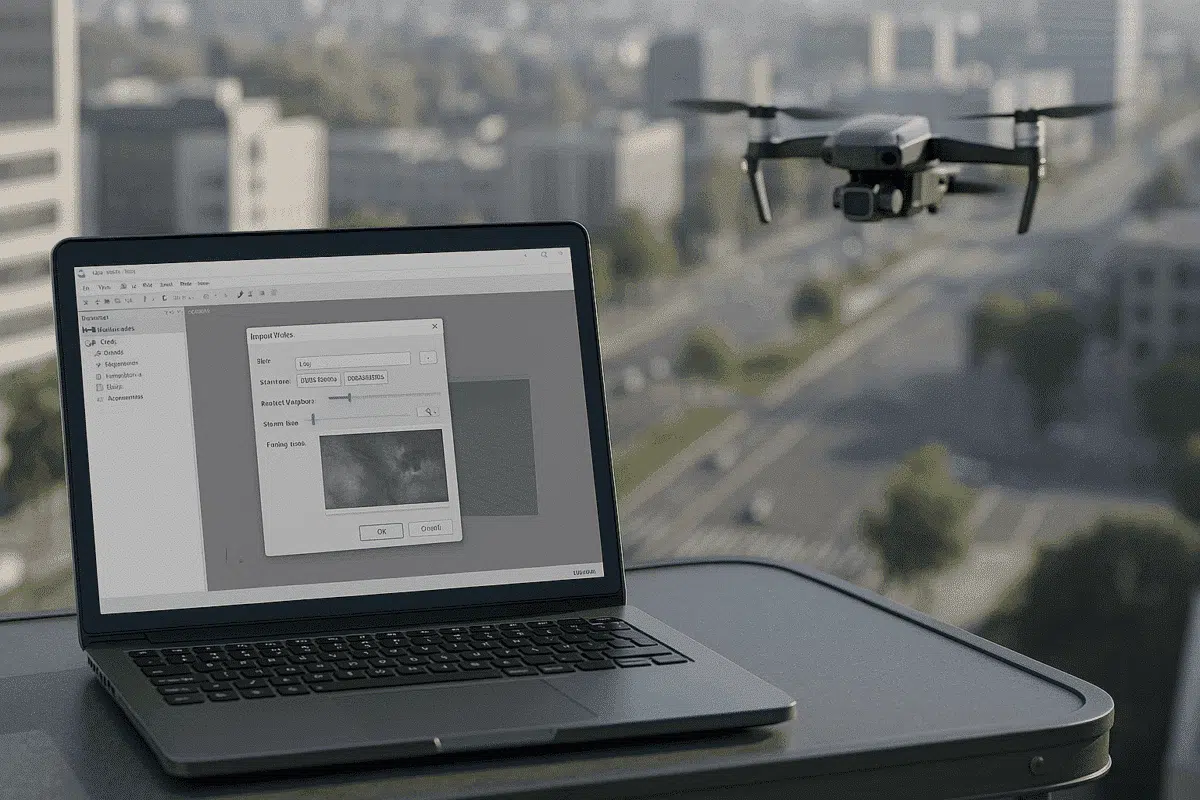
Agisoft Metashape is a leading photogrammetry software used to transform images into accurate 3D models, orthomosaics, and geospatial datasets. While most workflows rely on still photographs captured by drones or cameras, many professionals also use video footage as a source for frame extraction. This approach is especially useful when dealing with continuous flight paths, handheld recordings, or scenarios where taking discrete images isn’t practical.
However, users sometimes face frustrating obstacles when trying to import videos into Metashape. Common problems include unsupported formats, frame extraction errors, synchronization issues, or crashes during import. This guide explores why these issues occur, how to fix them, and how to ensure a smooth workflow from raw video to 3D reconstruction.
Why Importing Video into Metashape Can Be Challenging
Before diving into solutions, it’s important to understand how Metashape handles video data. Unlike still images, Metashape does not process videos directly. Instead, it relies on frame extraction — breaking the video into individual images that can then be aligned and processed. Because of this intermediate step, several factors can lead to import errors or reduced quality:
- Unsupported file formats: Metashape depends on third-party codecs for decoding video files. Certain formats (like proprietary drone codecs or uncommon containers) may not be recognized.
- Excessive resolution or bitrate: High-resolution videos (e.g., 8K or high-bitrate 4K) can overwhelm the frame extraction pipeline or cause memory allocation errors.
- Incorrect frame rate or variable frame rate (VFR): Metashape expects a consistent frame interval. VFR footage can lead to irregular frame extraction or sync issues.
- Corrupt or incomplete video files: Damaged headers or missing metadata often prevent proper reading of the file.
Identifying the root cause is the first step toward solving import problems. Once you understand where the process breaks down, fixing it is usually straightforward.
Step-by-Step Solutions for Video Import Problems
Below are the most effective troubleshooting steps and best practices to resolve common video import issues in Agisoft Metashape.
1. Convert Video to a Supported Format
One of the most frequent causes of import failure is an unsupported video format or codec. Metashape works best with widely supported containers like MP4 or MOV and codecs like H.264. If your footage is in a different format (such as .MKV, .AVI, or proprietary drone codecs), convert it before importing.
You can use tools like FFmpeg or HandBrake to transcode your video:
ffmpeg -i input_video.mkv -c:v libx264 -preset slow -crf 18 -c:a copy output_video.mp4
This ensures your file is compatible and optimized for frame extraction. Avoid heavy compression or re-encoding multiple times, as this can degrade image quality — which is critical for photogrammetry accuracy.
2. Stabilize and Clean the Video Before Import
Photogrammetry relies on consistent perspective and sharp imagery. If your video is shaky, blurred, or contains motion artifacts, frame extraction may produce unusable images. Before importing:
- Use video stabilization tools (e.g., Adobe Premiere Pro, DaVinci Resolve, or FFmpeg filters).
- Trim unnecessary sections to reduce file size and processing time.
- Ensure good exposure and lighting throughout the sequence.
These steps significantly improve the quality of extracted frames and reduce processing errors in Metashape.
3. Extract Frames Manually for More Control
Although Metashape can extract frames automatically, manually extracting them offers greater flexibility — especially when troubleshooting import issues. By doing so, you can:
- Control the frame interval (e.g., 1 frame every 2 seconds) to avoid excessive redundancy.
- Filter out blurry or redundant frames before processing.
- Inspect each image for sharpness and overlap.
With FFmpeg, you can extract frames using a simple command:
ffmpeg -i input_video.mp4 -vf fps=1 frames/frame_%04d.jpg
This extracts one frame per second. Adjust the fps value to your project needs. Once extracted, simply import the image sequence into Metashape like any other photo dataset.
4. Check for Variable Frame Rate (VFR) Issues
Videos recorded with smartphones or some drones often use variable frame rate (VFR) to save space. Unfortunately, this can cause irregular frame extraction and alignment errors in Metashape. To solve this, convert your video to a constant frame rate (CFR):
ffmpeg -i input_video.mp4 -vf fps=30 -c:v libx264 -preset slow -crf 18 -c:a copy output_cfr.mp4
This ensures that frames are evenly spaced and reduces synchronization issues during import.
5. Split Large Videos into Smaller Segments
If Metashape crashes or freezes during import, the file may simply be too large. Large 4K or 8K videos with high frame counts can exceed memory limits. Splitting the video into smaller chunks makes processing more manageable.
Use FFmpeg to split without re-encoding:
ffmpeg -i input_video.mp4 -ss 00:00:00 -to 00:05:00 -c copy part1.mp4
ffmpeg -i input_video.mp4 -ss 00:05:00 -to 00:10:00 -c copy part2.mp4
Import the segments separately and process them individually or merge their extracted frames later in Metashape.
Optimizing Workflow for Best Photogrammetry Results
Successfully importing your video is just the first step. To get the most accurate 3D reconstructions, consider these additional best practices:
1. Use High Frame Rates but Avoid Redundancy
More frames mean more data for reconstruction, but too many nearly identical frames can slow down processing without improving results. A good rule of thumb is to extract frames at 1–2 fps for drone flights or up to 5 fps for close-range handheld scans.
2. Maintain Consistent Overlap and Coverage
Just like with still imagery, overlap is crucial. Ensure that your video footage provides at least 60–80% forward overlap and 30–60% side overlap of the subject area. Slow, steady camera movement and consistent altitude (for drone videos) yield the best photogrammetry outcomes.
3. Verify Frame Quality Before Alignment
Once frames are extracted, inspect them before importing into Metashape. Remove blurry or redundant images to speed up processing and improve alignment accuracy. You can automate this step with image quality filtering scripts or manually review frames in batches.
Common Mistakes to Avoid
Even experienced users sometimes overlook key details when importing video into Metashape. Avoid these common pitfalls:
- Importing raw video directly without frame extraction: Metashape cannot process raw video files as-is — frames must be extracted first.
- Using compressed or low-quality footage: Heavy compression introduces artifacts that degrade reconstruction accuracy.
- Skipping frame filtering: Including blurry frames leads to misalignments and noisy point clouds.
- Ignoring metadata loss: Video files often lack GPS EXIF data. If geolocation is critical, capture stills or use external positioning data.
By addressing these issues proactively, you’ll avoid most video import headaches and produce cleaner, more accurate results.
Conclusion: Smooth Video-to-3D Workflows Are Possible
Importing video into Agisoft Metashape doesn’t have to be complicated. Most issues — from format incompatibility to frame extraction errors — can be solved with proper preprocessing and attention to detail. Converting your video to a supported format, stabilizing footage, ensuring a constant frame rate, and manually extracting frames when needed are proven strategies for a smoother workflow.
By following the best practices in this guide, you can transform raw video footage into high-quality 3D reconstructions that rival those created from still images. Whether you’re scanning landscapes, structures, or archaeological sites, mastering video import ensures Metashape remains a versatile and powerful tool in your photogrammetry toolkit.
Ready to try it yourself? Start by converting a short video, extracting frames, and importing them into Metashape. Once you perfect the workflow, you’ll unlock new possibilities for photogrammetry projects beyond traditional photo capture.
