

 Italiano
 Français
 Deutsch
 Español
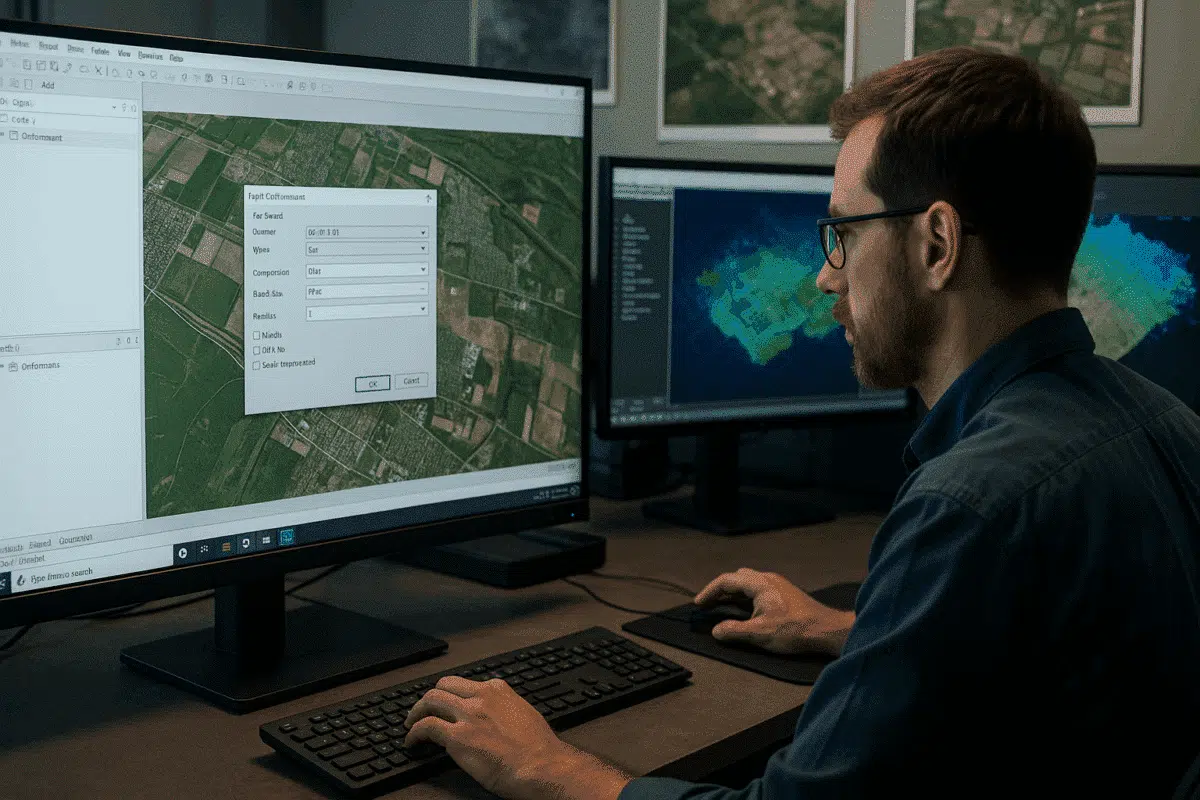
Agisoft Metashape is one of the most powerful photogrammetry tools available today, used by professionals worldwide for drone mapping, 3D modeling, and geospatial analysis. However, even experienced users sometimes face a frustrating obstacle during the final stage of their workflow: orthomosaic export failures. If you’ve encountered errors while trying to export your orthomosaic, you’re not alone — and the good news is that most of these issues have straightforward solutions.
Understanding Why Orthomosaic Export Fails in Metashape
Orthomosaics are large, high-resolution raster files generated by stitching together hundreds or thousands of aerial images. Because of their size and complexity, exporting them requires significant system resources and careful attention to software settings. When an export fails, the error message often gives the first clue to what went wrong.
One of the most common errors looks like this:
“Maximum supported image dimensions for JPEG format is 65500 pixels and current raster is 70779×65947. Please consider using ‘Split in blocks’ option in export dialog or select BigTIFF format.”
This error occurs because the JPEG format has a hard-coded pixel limit of 65,500 in either dimension. If your orthomosaic exceeds this, Metashape cannot complete the export in JPEG format. This is not a bug — it’s a technical limitation of the image format itself.
Other common causes of export failure include:
- Insufficient system memory (RAM or VRAM): Large orthomosaics require substantial memory to render and export. Systems with less than 32 GB of RAM often struggle with very large datasets.
- File system limitations: Some older file systems have maximum file size limits (e.g., 4 GB for FAT32) that can cause export failures when writing massive raster files.
- Improper coordinate reference system (CRS) settings: Mismatched CRS definitions between the project and export settings can occasionally trigger export errors or misalignments.
Best Practices to Avoid Orthomosaic Export Errors
Before diving into specific fixes, adopting the following best practices will dramatically reduce the chances of running into export failures:
- Plan for scale from the start: Use appropriate ground sampling distance (GSD) and image overlap during flight planning to balance resolution with manageable dataset sizes.
- Optimize your project before export: Disable unused layers, remove unnecessary point clouds, and close other applications to free up system memory.
- Check pixel dimensions early: You can preview the estimated size of your orthomosaic before exporting. If it exceeds ~65,000 pixels on a side, plan to use a format that supports large rasters.
These steps alone often prevent export errors before they happen. But if you’re already facing issues, the following solutions will help you resolve them.
Solution 1: Use BigTIFF for Large Orthomosaics
The most effective way to bypass pixel dimension limits is to use the BigTIFF format. Unlike standard TIFF and JPEG formats, BigTIFF can handle extremely large raster files — even those exceeding 4 GB or 65,000 pixels per dimension.
To do this in Metashape:
- Go to File > Export > Export Orthomosaic.
- In the dialog window, select BigTIFF (.tif) as the output format.
- Enable Write BigTIFF if prompted.
- Choose your desired compression (e.g., LZW or Deflate) to reduce file size without quality loss.
BigTIFF is supported by most modern GIS software, including QGIS, ArcGIS Pro, and Global Mapper. It’s the recommended format for large orthomosaics, particularly in professional workflows.
Solution 2: Export in Split Blocks
If your orthomosaic is still too large, another robust approach is to split it into smaller blocks during export. This technique divides the raster into manageable tiles that can be processed, opened, and shared more easily.
Here’s how:
- Open the Export Orthomosaic dialog.
- Check the option Split in blocks.
- Specify the block size — for example, 10,000 x 10,000 pixels per tile.
- Export the orthomosaic as individual tiles, which can later be mosaicked together in GIS software.
This approach not only solves export errors but also improves performance when loading large orthomosaics in mapping software. Many GIS workflows prefer tiled rasters for speed and scalability.
Solution 3: Verify CRS and Export Settings
Export failures can sometimes occur due to mismatched coordinate reference systems or misconfigured export parameters. Always ensure that:
- The project’s CRS matches your intended output CRS.
- The SRS Origin and bounding box settings are correct. If these appear as
0,0,0during export, review your chunk alignment and coordinate system setup. - Output resolution (GSD) is realistic — excessively high resolutions can create unmanageable file sizes.
If necessary, you can reproject the orthomosaic to a different CRS during export. This is particularly useful if the source data uses a local coordinate system incompatible with your GIS workflow.
Solution 4: Upgrade Hardware and Optimize Resources
Sometimes, the root cause isn’t the software or export settings — it’s hardware limitations. Exporting massive orthomosaics can require tens of gigabytes of RAM and substantial disk space. Consider the following hardware tips:
- RAM: At least 32 GB is recommended for medium datasets, while 64 GB or more is ideal for large-scale projects.
- GPU: A modern GPU with 8 GB or more VRAM can accelerate processing and reduce crashes.
- Disk space: Ensure you have at least 2–3× the expected output file size available on the destination drive.
Also, close all unnecessary applications before exporting and consider enabling Metashape’s network processing feature if you have multiple workstations available.
Final Checks: Testing with a Smaller Area
If you’re still encountering export errors, try clipping the orthomosaic to a smaller region and exporting it as a test. If the smaller export succeeds, the problem likely lies with dataset size or system resources. If even a small export fails, investigate CRS settings, Metashape logs, or potential software issues.
Conclusion: Reliable Orthomosaic Export is Achievable
Orthomosaic export failures in Agisoft Metashape can be frustrating, but they’re almost always solvable with the right approach. Whether you switch to BigTIFF, split your raster into blocks, verify CRS settings, or upgrade your hardware, there’s a clear path to success. By planning ahead, optimizing your workflow, and understanding the technical limits of raster formats, you can ensure smooth exports even for massive aerial mapping projects.
Mastering these techniques will not only save you time but also help you deliver high-quality geospatial products with confidence. If you continue to face persistent issues, Agisoft’s official documentation and support team are excellent resources to consult for deeper troubleshooting.
