

 Italiano
 Français
 Deutsch
 Español
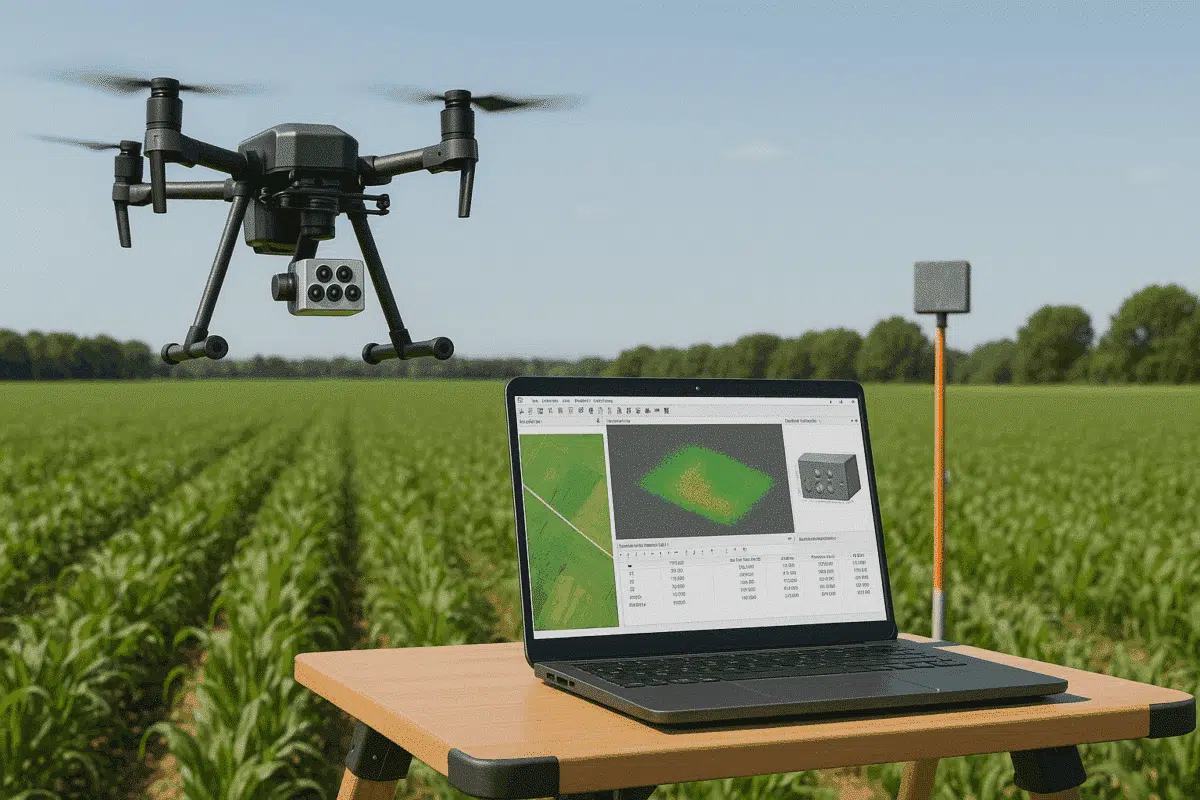
Agisoft Metashape Professional is one of the most powerful photogrammetry tools for processing aerial imagery, allowing users to create accurate 3D models, orthomosaics, and reflectance maps. When paired with advanced sensors like the MicaSense Altum, Metashape enables precise multispectral and thermal data processing — ideal for applications in agriculture, forestry, environmental monitoring, and research.
This guide explains the complete MicaSense Altum processing workflow in Agisoft Metashape Professional, including how to handle reflectance calibration for accurate, repeatable results. Whether you’re a precision agriculture professional or a research scientist, this workflow ensures your data delivers reliable vegetation indices and scientifically valid outputs.
Understanding the MicaSense Altum Sensor
The MicaSense Altum is a professional-grade multispectral and thermal imaging camera designed for drone-based remote sensing. It captures six distinct spectral bands — five multispectral (Blue, Green, Red, Red Edge, Near-Infrared) and one thermal infrared channel — allowing for both radiometric and thermal analysis.
Key features of the MicaSense Altum include:
- Six synchronized bands (5 multispectral + 1 thermal)
- Integrated Downwelling Light Sensor (DLS) for ambient light correction
- High radiometric accuracy with reflectance panel calibration
- Compatibility with RTK/PPK geotagging for centimeter-level accuracy
Before processing Altum imagery in Metashape, it’s essential to understand how these spectral datasets are captured, as each band is stored as a separate image file with corresponding metadata.
Preparing MicaSense Altum Data for Processing
Each MicaSense Altum flight produces a structured folder containing subfolders for each capture, metadata files, and calibration images. To ensure a smooth workflow in Metashape, follow these preparation steps:
1. Organize the Dataset
Download the complete dataset from the SD card and ensure all subfolders remain intact. Each image capture typically contains six files — one per band — sharing the same timestamp and naming convention.
Example file naming pattern:
IMG_0001_1.tif  (Blue)
IMG_0001_2.tif  (Green)
IMG_0001_3.tif  (Red)
IMG_0001_4.tif  (Red Edge)
IMG_0001_5.tif  (NIR)
IMG_0001_6.tif  (Thermal)
Maintain the structure and metadata integrity to ensure Metashape automatically groups the images correctly.
2. Include Calibration Images
Before every flight, the Altum must capture an image of the MicaSense reflectance calibration panel. This image is used during processing to normalize reflectance values across varying lighting conditions.
Place calibration panel images in a clearly labeled folder (e.g., calibration_panel/) for easy import later in Metashape.
3. Verify Metadata
Ensure each image includes correct EXIF and XMP metadata, including camera model, band information, and GPS coordinates. Avoid renaming or moving individual images, as this may break band synchronization.
Importing MicaSense Altum Images into Agisoft Metashape
Launch Metashape Professional and follow these steps to properly import and structure your multispectral dataset:
Step 1: Add Photos
Go to Workflow > Add Folder and select the main image directory from your Altum dataset. Metashape automatically detects the MicaSense image structure and groups the six bands into a single multispectral capture for each frame.
Step 2: Check Band Configuration
In the Photos pane, verify that each capture is correctly recognized as a multispectral set (not as individual images). You should see a small “multiband” icon next to each image group.
Step 3: Load Calibration Images
Go to Tools > Calibrate Reflectance and add the calibration panel image(s) captured before the flight. Metashape uses this data, along with the Downwelling Light Sensor (DLS) metadata, to calculate reflectance coefficients for each spectral band.
Performing Reflectance Calibration in Metashape
Reflectance calibration is essential to ensure your final orthomosaics and vegetation indices reflect true surface properties rather than relative brightness. Here’s how to perform it properly:
1. Calibrate Using Panel Data
After adding the calibration panel image, Metashape automatically detects the reflectance panel and calculates band-specific calibration coefficients. If the software does not automatically detect the panel, you can manually draw a selection box around the panel area in the image viewer.
2. Apply DLS Corrections
Metashape uses DLS data stored in the image metadata to adjust for changing illumination during the flight. Ensure the Use Sun Sensor Data option is enabled in the reflectance calibration dialog. This step compensates for differences in sunlight intensity and angle across the flight path.
3. Verify Calibration Results
Once calibration is complete, open the Camera Calibration window to review applied coefficients. Each spectral band should display a unique calibration value. This ensures that your reflectance maps represent actual surface reflectance rather than relative brightness values.
Processing Workflow in Agisoft Metashape Professional
Once calibration is complete, you can process MicaSense Altum imagery in Metashape using the standard photogrammetry workflow, optimized for multispectral datasets.
1. Align Photos
Select Workflow > Align Photos. Choose High accuracy and enable Adaptive camera model fitting. Metashape aligns all multispectral frames based on shared geometry and geotag data from the drone.
2. Build Dense Cloud and Mesh (Optional)
Although not always necessary for reflectance analysis, you can generate a dense point cloud or 3D mesh to visualize surface structure. This is particularly useful when integrating multispectral data with 3D reconstruction or elevation analysis.
3. Build Reflectance Maps and Orthomosaics
Go to Workflow > Build Orthomosaic. Choose the “Reflectance” source data type. Metashape will generate a radiometrically calibrated, georeferenced multispectral orthomosaic — one layer per spectral band. You can then calculate vegetation indices such as NDVI, NDRE, or GNDVI directly within Metashape or export them to GIS software.
4. Generate Vegetation Indices (NDVI, NDRE)
In Metashape, go to Tools > Raster Calculator and use expressions like:
NDVI = (NIR - Red) / (NIR + Red)
NDRE = (NIR - RedEdge) / (NIR + RedEdge)
These indices highlight vegetation health, stress, and chlorophyll content, enabling precise crop monitoring and research applications.
Exporting Multispectral and Thermal Results
Once processing is complete, you can export your results in various formats compatible with GIS and remote sensing software:
- Orthomosaic: GeoTIFF (multi-band)
- Reflectance Maps: Single-band GeoTIFF for each spectral band
- DEM/DSM: GeoTIFF or ESRI ASCII Grid
- Thermal Maps: Radiometrically calibrated TIFF files
When exporting, always ensure that the correct coordinate reference system (CRS) is defined and that radiometric calibration options remain enabled.
Tips for Accurate MicaSense Altum Processing
- Capture at least one calibration panel image before and after each flight.
- Fly during consistent lighting conditions (avoid cloud shadows).
- Keep the sensor clean and properly synchronized with GNSS data.
- Use high overlap (80% front, 70% side) for reliable alignment.
- Always enable “Use Sun Sensor Data” in reflectance calibration settings.
Conclusion: Unlocking Scientific Accuracy with MicaSense and Metashape
Processing MicaSense Altum data in Agisoft Metashape Professional allows professionals to generate highly accurate, radiometrically calibrated outputs that go beyond simple imagery. By following a proper workflow — including reflectance calibration and DLS correction — users can produce multispectral and thermal maps that truly reflect real-world surface properties.
Whether you’re monitoring crop health, mapping ecosystems, or conducting environmental research, mastering the MicaSense Altum workflow in Metashape ensures your data achieves the highest scientific and analytical standards.
