

 Italiano
 Français
 Deutsch
 Español
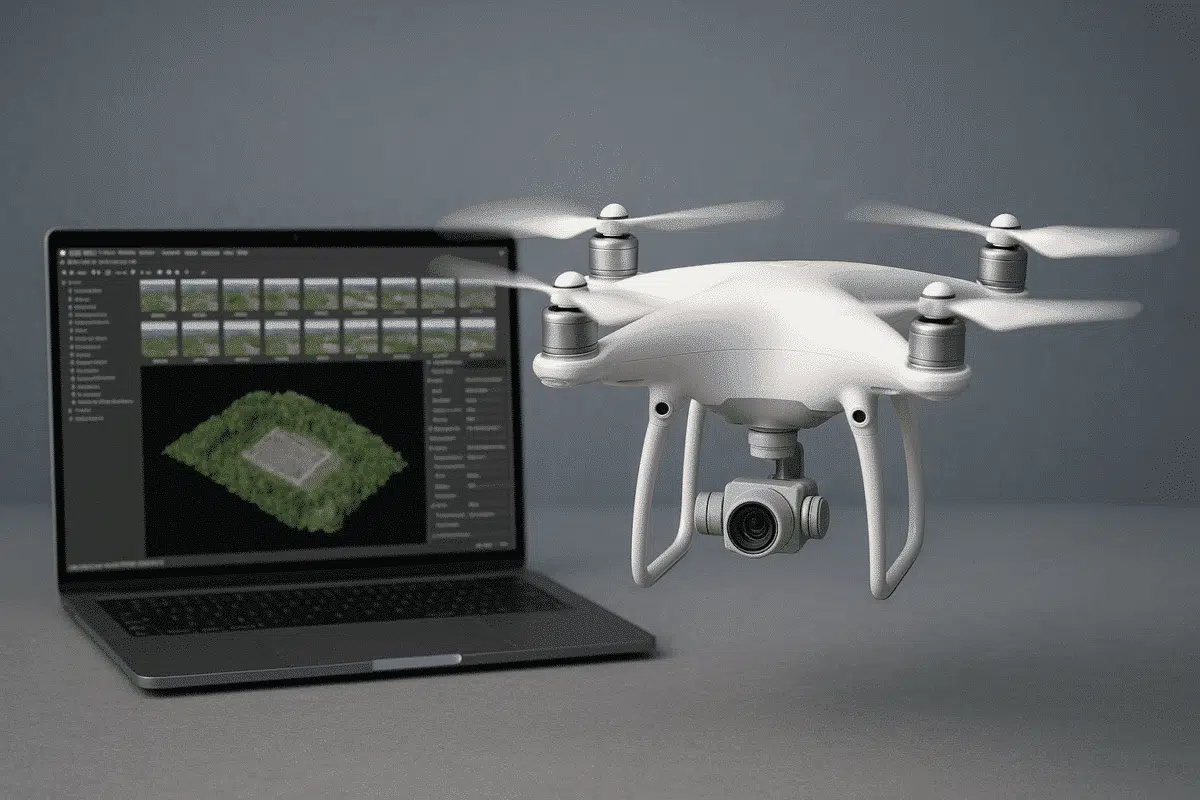
Combining DJI drones with Agisoft Metashape is one of the most efficient ways to perform accurate photogrammetry for 3D mapping, surveying, and inspections. Whether you’re capturing construction sites, cultural heritage, or agricultural fields, this guide provides a detailed overview of how to set up your DJI drone, plan your flight, and process the data effectively using Metashape in 2025.
Why DJI Drones + Metashape?
DJI’s enterprise drones such as the Mavic 3 Enterprise, Phantom 4 RTK, and Matrice 350 RTK are equipped with high-resolution cameras and RTK/PPK positioning capabilities, making them ideal for photogrammetry. Agisoft Metashape, in turn, provides a powerful, offline processing suite to generate dense point clouds, orthomosaics, and textured 3D models from drone imagery.
Recommended DJI Models for Photogrammetry
- Mavic 3 Enterprise (M3E) – Compact, mechanical shutter, RTK support
- Phantom 4 RTK – Proven platform, accurate geotagging, fixed camera
- Matrice 350 RTK – Versatile payloads, P1 camera option, advanced RTK
Flight Planning Best Practices
Use DJI Pilot 2, DJI GS Pro, or a third-party app like DroneDeploy or Litchi for mission planning. Key parameters:
- Altitude: 60–120 meters depending on site area and GSD needs
- Overlap: 80% frontal, 70% side overlap (minimum)
- Shutter: Mechanical (to reduce rolling distortion)
- Camera Angle: Nadir for mapping; Oblique for 3D
- Speed: 3–5 m/s for better photo sharpness
Manual Camera Settings
To ensure consistent image quality, switch to manual camera settings:
- ISO: 100–200
- Shutter Speed: 1/800s or faster
- White Balance: Fixed (e.g., Sunny or Cloudy)
- Focus: Locked or set to infinity
Using RTK or GCPs for Accuracy
RTK-equipped DJI drones can embed precise geotags into the image metadata. However, for survey-grade accuracy, Ground Control Points (GCPs) are still recommended:
- Use visible markers on the ground (crosses or targets)
- Measure them using a high-accuracy GNSS or total station
- Import GCPs into Metashape for optimization
Importing DJI Images into Metashape
- Transfer all images to your computer (rename if necessary)
- Open Metashape → Add Photos
- Enable “Load camera locations from EXIF” for automatic positioning
Metashape Processing Workflow
- Photo Alignment: Use “High” accuracy with Reference preselection
- GCP Integration: Place markers and optimize camera alignment
- Dense Cloud: “High” or “Medium” quality with moderate filtering
- Mesh or DEM: Create based on your project needs
- Orthomosaic: Export for 2D analysis and mapping
Exporting Results
- Orthomosaic: GeoTIFF with embedded geodata
- Point Cloud: LAS or XYZ for use in GIS and CAD
- Mesh: OBJ or FBX for 3D visualization and modeling
- Reports: Use volume or measurement tools inside Metashape
Tips for Better Results
- Fly only in good weather with consistent lighting
- Use RTK correction via NTRIP or base station
- Avoid flying during sunrise/sunset for consistent shadows
- Calibrate camera lens for better alignment
Conclusion
DJI drones and Agisoft Metashape form a robust photogrammetry solution for a wide range of industries. With proper planning, accurate image capture, and consistent workflow in Metashape, you can produce high-quality maps, models, and geospatial deliverables from drone data. As drone and photogrammetry technology continue to evolve, mastering this integration becomes essential for professionals in 2025 and beyond.
