

 Italiano
 Français
 Deutsch
 Español
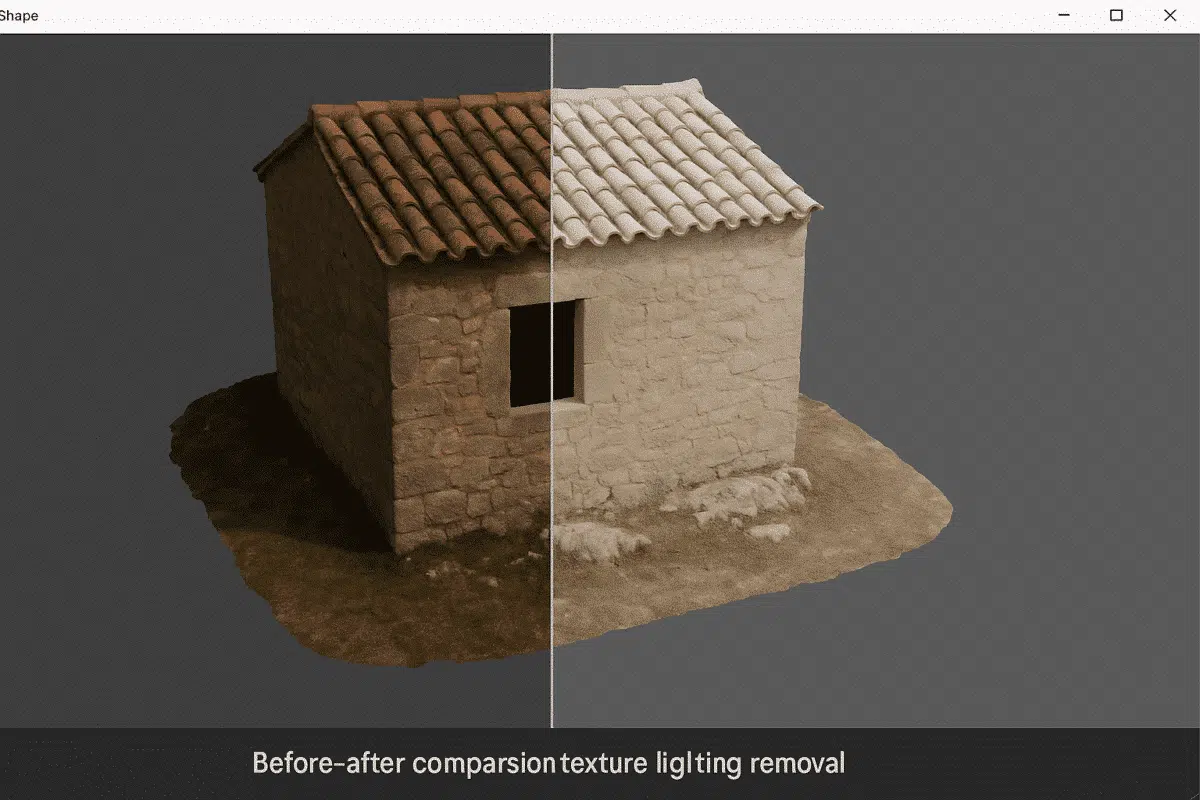
Agisoft Metashape Professional is a leading photogrammetry software used for creating high-quality 3D models and orthomosaics from images. One of the most common challenges in photogrammetry is dealing with uneven lighting or shadows baked into texture maps. These lighting effects can distort color accuracy, reduce realism, and complicate analytical or visual workflows. Fortunately, Metashape offers several methods — including texture adjustment tools and integration with Agisoft Texture De-Lighter — to help remove lighting artifacts and create neutral, shadow-free textures.
This guide walks you through the complete workflow for removing lighting from textures in Agisoft Metashape Professional, explaining both native tools and best practices for achieving natural, evenly lit surfaces suitable for analysis, visualization, or digital preservation.
Why Lighting Removal Matters in Texture Processing
When capturing photos for 3D reconstruction, lighting conditions can vary due to sunlight direction, artificial illumination, or surface reflections. These variations cause inconsistent exposure across images, which become “baked” into the final texture map. The result can be strong highlights, dark shadows, or color shifts that don’t represent the true surface properties of the object or terrain.
Removing or reducing lighting artifacts is essential for:
- Scientific accuracy – ensuring textures reflect true surface color, not lighting artifacts.
- Consistent visual quality – eliminating bright or dark patches in 3D visualizations.
- Texture re-lighting – preparing neutral textures for realistic rendering in 3D software.
- Cultural heritage documentation – preserving surface details without environmental lighting bias.
Agisoft Metashape Professional provides built-in tools for color balancing and correction, while advanced users can also integrate Agisoft’s standalone Texture De-Lighter for deeper illumination correction.
Step-by-Step: Removing Lighting from Texture in Metashape
Below is a detailed workflow for minimizing or removing lighting effects directly within Agisoft Metashape Professional, from texture preparation to external post-processing.
Step 1: Start with a Well-Balanced Dataset
Before processing, capture images under consistent lighting conditions. For outdoor projects, use cloudy or diffuse light to avoid sharp shadows. In controlled environments, use uniform studio lighting. Proper image acquisition minimizes lighting differences and simplifies texture correction later.
When importing photos, check image histograms to confirm consistent exposure and color balance. If needed, pre-correct the images using software like Lightroom or Capture One before importing into Metashape.
Step 2: Build Texture Using Mosaic Mode
After aligning photos and building your mesh, generate the texture in Workflow > Build Texture. Choose the following settings:
- Mapping mode: Mosaic
- Blending mode: Mosaic
- Enable Color Correction: ✓ (checked)
The Mosaic blending mode intelligently combines overlapping images, selecting the best-exposed pixels while reducing shadows and bright spots. Enabling Color Correction ensures consistent brightness and tone across the entire surface. This step alone can significantly reduce visible lighting gradients.
Tip: Use a higher texture size (e.g., 8192 × 8192 or 16384 × 16384) for detailed models, as finer pixel detail improves correction precision.
Step 3: Adjust Brightness and Contrast in Texture View
After generating the texture, you can make small global adjustments directly in Metashape:
- Switch to the Model view and enable the textured mesh display.
- Go to Tools > Adjust Color Levels.
- Use the sliders to balance brightness, gamma, and contrast across the texture.
This is useful for fine-tuning overall tone without external editing. However, it won’t fully remove directional shadows — for that, more advanced tools are required.
Using Agisoft Texture De-Lighter for Advanced Lighting Removal
For complete lighting removal, Agisoft Texture De-Lighter is the recommended solution. It’s a standalone application developed by Agisoft to work seamlessly with Metashape outputs. The software analyzes and removes illumination gradients, shadows, and specular highlights from texture maps.
Step 1: Export the Model or Texture from Metashape
Export your model with its current texture using File > Export Model, or export only the texture map via Tools > Export Texture. Supported formats include OBJ, FBX, or PLY for models, and TIFF or PNG for textures. Make sure the texture is high resolution for optimal correction results.
Step 2: Open in Texture De-Lighter
Launch the Texture De-Lighter application and load your model or texture. The software automatically detects illumination gradients and provides a preview of the lighting map. You can visualize which areas are affected by overexposure (bright regions) and underexposure (dark regions).
Step 3: Run De-Lighting Correction
Click Process > De-Light to begin automatic correction. The algorithm removes shadow effects and evens out brightness levels across the texture. You can fine-tune parameters such as:
- Lighting balance – controls how much illumination is flattened.
- Shadow threshold – adjusts sensitivity for dark areas.
- Highlight recovery – reduces overly bright zones.
- Smoothing factor – ensures soft transitions between corrected regions.
Review the result using the split-screen comparison mode to check the difference between the original and de-lighted textures. Aim for a balanced, natural result — not completely flat lighting.
Step 4: Export the Corrected Texture
Once you’re satisfied, export the corrected texture via File > Export Texture. Save it in TIFF or PNG format to preserve color fidelity. You can now re-import the texture into your Metashape project.
Step 5: Replace the Original Texture in Metashape
To update the model in Metashape:
- Open your existing project.
- Right-click the Model in the Workspace pane.
- Select Import Texture and choose your corrected file.
The lighting-neutral texture will replace the original, maintaining all UV mappings and geometry. You can now export your final 3D model or orthomosaic with uniform, accurate textures.
Alternative Methods for Lighting Correction
If you don’t have access to Agisoft Texture De-Lighter, you can use external image editors like Adobe Photoshop or Affinity Photo to manually adjust lighting in the texture file. Techniques include:
- Using the Dodge & Burn tools to even out brightness variations.
- Applying Gradient Maps or Levels for global tone balancing.
- Using Frequency Separation to separate color and lighting information for independent editing.
While manual methods can be effective for small corrections, Texture De-Lighter remains the most precise and time-efficient tool for large or complex models.
Best Practices for Shadow-Free Textures
- Capture imagery under diffuse light (cloudy conditions or soft artificial lighting).
- Keep camera settings consistent: fixed aperture, ISO, and white balance.
- Enable “Color Correction” during texture generation.
- Use Texture De-Lighter for final illumination removal.
- Preserve original textures — always keep backups before modifying lighting.
Why Use Lighting-Neutral Textures?
Lighting-neutral textures are essential for professional 3D workflows. They enable consistent rendering and accurate material reproduction when models are imported into GIS platforms, game engines, or visualizations with dynamic lighting. Without baked-in shadows or highlights, the model can be realistically illuminated in any 3D environment — essential for VR, simulation, and visual effects applications.
Conclusion: Perfecting Textures in Agisoft Metashape Professional
Removing lighting from textures is a critical step for achieving professional-grade, visually accurate 3D models. Agisoft Metashape Professional provides excellent base tools for color correction and blending, while Agisoft Texture De-Lighter offers advanced, automatic shadow and highlight removal for cleaner, more consistent surfaces.
By combining these tools with careful image capture and texture optimization, you can ensure that your 3D assets are lighting-neutral, realistic, and ready for any application — from scientific visualization to commercial rendering.
