

 Italiano
 Français
 Deutsch
 Español
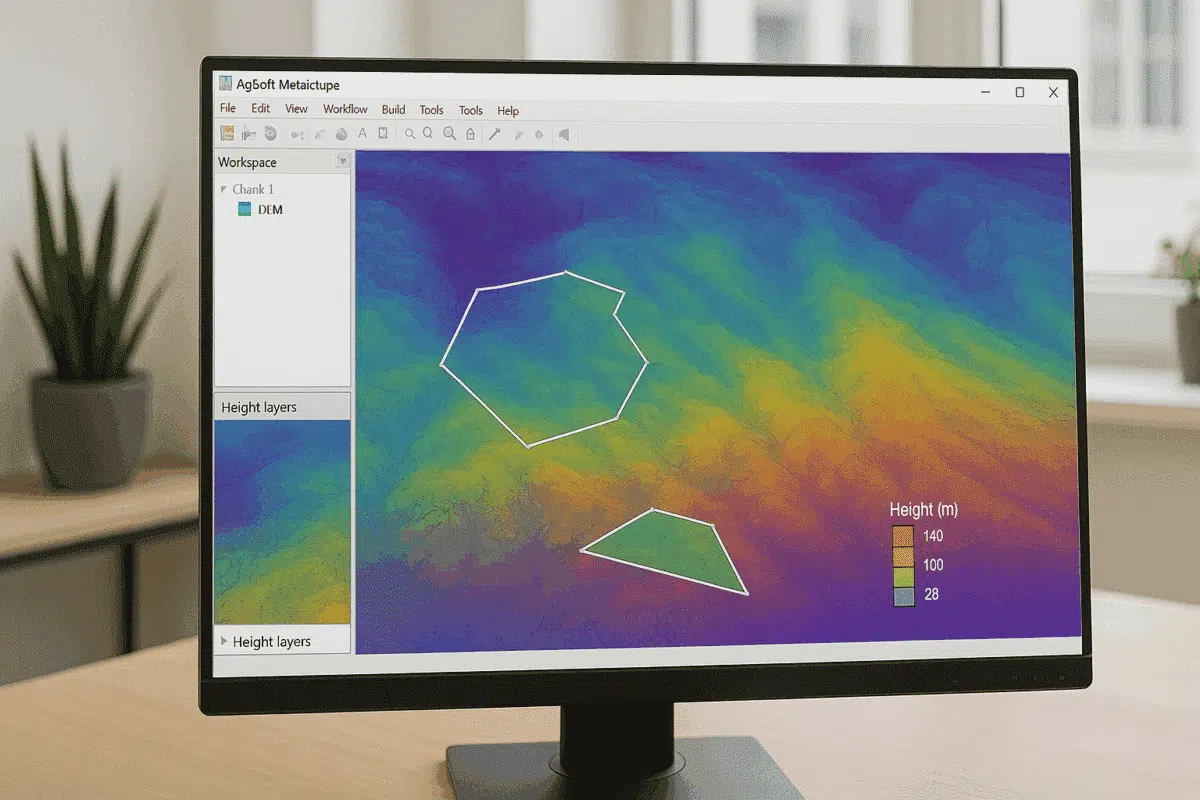
Agisoft Metashape Professional is a leading photogrammetry software used by surveyors, GIS specialists, and drone mapping professionals worldwide. One of its most powerful analytical features is the ability to perform DEM-based measurements — enabling users to calculate areas, volumes, elevation differences, and terrain profiles directly from Digital Elevation Models (DEMs) generated within the software.
This guide provides a complete walkthrough of how to create and use DEMs for measurement purposes in Metashape, explaining each step clearly and showing how to extract actionable data from 3D photogrammetry projects.
What Is a DEM and Why It Matters
A Digital Elevation Model (DEM) is a raster dataset representing the elevation of the Earth’s surface at regular intervals. It provides crucial information about terrain morphology, slopes, and elevation variations — making it essential for applications in engineering, mining, urban planning, hydrology, and agriculture.
Agisoft Metashape can generate two types of elevation models:
- Digital Surface Model (DSM): Includes all visible features such as vegetation, buildings, and other structures.
- Digital Terrain Model (DTM): Represents only the bare earth, with objects like trees and buildings removed.
DEM-based measurements allow users to go beyond visual inspection — enabling the quantification of surface changes, height differences, and material volumes with high precision. When paired with accurate ground control points (GCPs) and RTK or PPK data, Metashape can deliver centimeter-level measurement accuracy.
Creating a DEM in Agisoft Metashape
Before performing measurements, you need to generate a DEM from your project. This requires a complete photogrammetry workflow: photo alignment, dense cloud generation, and ground classification.
Step 1: Align Photos
- Import your images via Workflow > Add Photos.
- Run Workflow > Align Photos with High accuracy and enable Reference Preselection if GPS metadata is available.
- Once aligned, verify the camera positions and remove any misaligned images.
Step 2: Build the Dense Cloud
- Go to Workflow > Build Dense Cloud.
- Select High or Ultra High quality for best results.
- Use Mild filtering to retain fine surface details.
The dense cloud provides the foundation for all elevation data. It should accurately represent the terrain before proceeding to DEM generation.
Step 3: Classify Ground Points
To create a terrain-only DEM (DTM), classify the dense cloud:
- Switch to the Dense Cloud view.
- Select Tools > Dense Cloud > Classify Ground Points.
- Adjust parameters such as Max angle, Max distance, and Cell size based on terrain conditions.
Metashape will automatically identify ground points and assign them to the “Ground” class, which is crucial for accurate elevation modeling.
Step 4: Build the DEM
Finally, create your DEM:
- Go to Workflow > Build DEM.
- Choose the source data (e.g., Dense Cloud).
- Select the desired projection and coordinate system.
- Specify the resolution and output file format (TIF recommended).
Metashape will interpolate elevation values between ground-classified points and generate a georeferenced DEM ready for analysis.
Performing DEM-Based Measurements
Once your DEM is generated, you can use it for a variety of measurements directly inside Metashape or by exporting it for GIS processing.
1. Elevation Profiles
To measure terrain elevation along a specific path:
- Switch to the Ortho view.
- Select the Draw Polyline tool and trace your desired path.
- Right-click and choose Measure Profile.
Metashape will display an elevation profile graph showing distance vs. height, useful for analyzing slopes, ridgelines, or road alignments.
2. Elevation Difference Between Two DEMs
When you have two DEMs representing different times (for example, before and after excavation or construction), you can compute the elevation difference between them:
- Go to Tools > DEM > Calculate Difference.
- Select the “Base DEM” and the “Comparison DEM.”
- Choose the output format (e.g., GeoTIFF).
The result will be a raster showing elevation changes (ΔZ values). Positive values indicate material accumulation, while negative values show erosion or excavation.
3. Volume Measurements
DEM-based volume calculation is one of the most common applications in Metashape, particularly for mining, construction, and earthworks.
- Open the Ortho view.
- Draw a polygon around the area of interest using the Draw Polygon tool.
- Right-click and choose Measure Volume.
Metashape computes the cut, fill, and total volume values based on the DEM surface relative to a selected base plane or reference level.
Tip: For best accuracy, use a ground-classified DTM and verify that your coordinate system uses appropriate units (e.g., meters). Small vertical errors can lead to large volume deviations.
4. Area Calculations
To calculate the surface or planimetric area of a polygon:
- Draw the region using the Polygon tool.
- Right-click and select Measure Area.
Metashape displays both the horizontal (2D) area and the true surface area, accounting for elevation variations. This is useful for slope surface analysis and vegetation or construction footprint estimation.
Exporting DEMs and Measurements
For more advanced analysis, you can export DEMs and measurement results for use in external GIS or CAD software:
- Export DEM via File > Export > Export DEM.
- Choose formats such as GeoTIFF, IMG, or XYZ.
- Ensure the coordinate reference system (CRS) matches your other datasets.
- For volume or area results, export reports as .CSV or .TXT files.
These exports can be easily imported into software such as QGIS, ArcGIS, or Global Mapper for further analysis and integration with other spatial data layers.
Tips for Improving DEM Accuracy
- Use RTK/PPK-enabled drones or well-distributed GCPs for georeferencing.
- Ensure proper ground classification before DEM generation.
- Apply the correct coordinate system and geoid model to avoid vertical errors.
- Use high-quality, overlapping imagery with consistent lighting.
- Check DEM resolution — finer grid spacing improves detail but increases processing time.
Accurate DEMs form the foundation for all elevation-based measurements in Metashape. Proper workflow and calibration significantly enhance data reliability.
Applications of DEM-Based Measurements
DEM-based measurements are widely used across multiple industries:
- Mining: Track excavation progress, calculate material volumes, and monitor slope stability.
- Civil Engineering: Plan cut-and-fill operations, road grading, and site preparation.
- Agriculture: Analyze field topography for irrigation and drainage optimization.
- Environmental Monitoring: Measure erosion, sediment transport, and terrain changes over time.
- Urban Planning: Assess building site elevation and flood risk areas.
By using DEM-based tools, professionals can make informed decisions supported by accurate, measurable topographic data.
Conclusion: Unlocking the Power of DEM Analysis in Metashape
Performing DEM-based measurements in Agisoft Metashape allows you to transform raw photogrammetric data into actionable insights. From volume estimation and surface area calculation to elevation change detection, DEMs provide the foundation for precise terrain analysis and decision-making.
By following best practices — accurate georeferencing, correct ground classification, and appropriate DEM resolution — you can ensure reliable results that meet professional survey standards. Whether for construction, mining, or environmental studies, DEM-based workflows in Metashape deliver both accuracy and efficiency for real-world applications.
