

 Italiano
 Français
 Deutsch
 Español
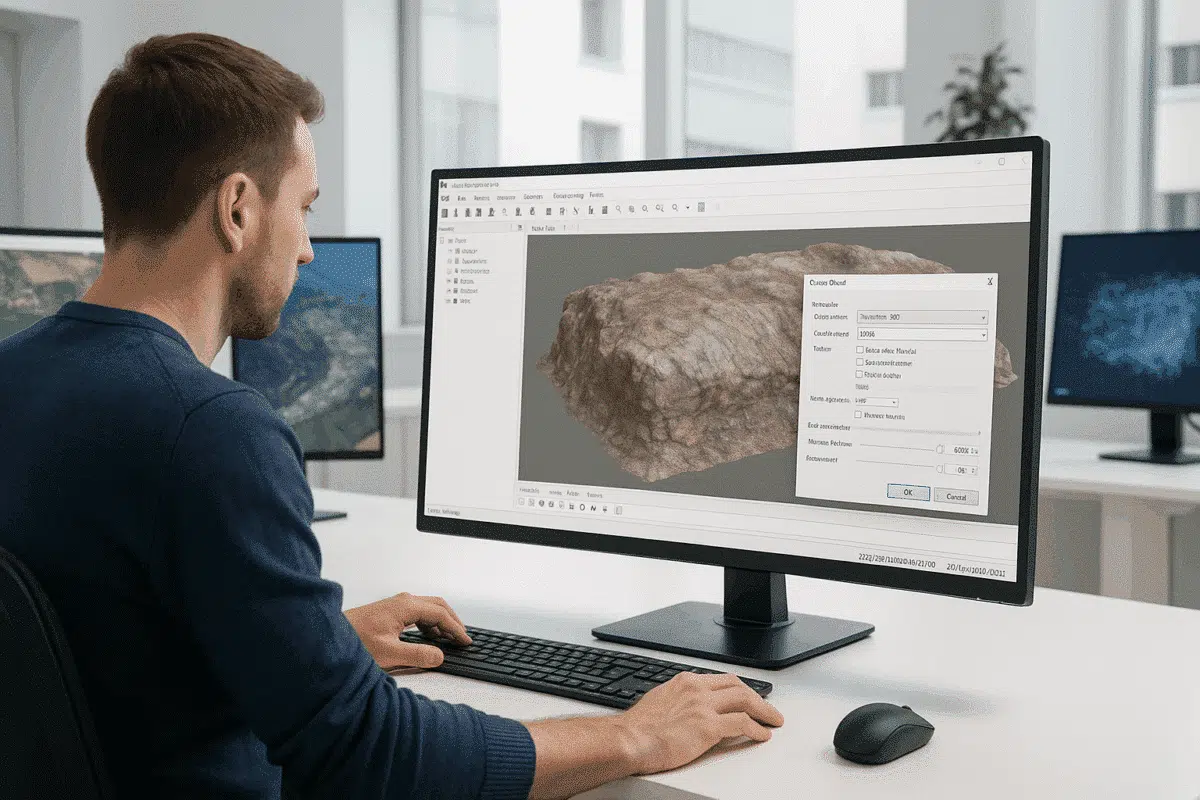
Agisoft Metashape is one of the most powerful photogrammetry tools available for transforming 2D images into accurate 3D models. From archaeology and architecture to mining and film production, professionals rely on Metashape for precise, detailed reconstructions. However, one common frustration arises when an exported model looks noticeably worse than it did inside the software — with reduced detail or unexpected ripple artifacts on surfaces.
If you’ve encountered this issue, you’re not alone. Many Metashape users report that their models appear smooth and crisp in the software, but after export, they lose fine details or develop strange undulating patterns. This guide explains why this happens, how to fix it, and how to ensure your exported 3D models maintain the same quality as the originals.
Why Exported Models Lose Detail or Show Ripples
Before jumping into solutions, it’s essential to understand the most common reasons behind these problems. Export-related degradation typically stems from one or more of the following factors:
1. Polygon Decimation During Export
One of the most frequent causes of lost detail is polygon decimation, which occurs when the mesh is simplified during export. By default, Metashape may reduce the polygon count to create a smaller file size or faster processing model. While this is useful for visualization or web deployment, it can strip away the fine geometry that gives your model its detail.
For example, a mesh originally generated with 50 million faces might be decimated to just 5 million during export, leading to visible smoothing and a loss of surface texture.
2. Low-Resolution Texture or Incorrect UV Mapping
Even if the geometry is intact, a low-resolution texture can make your exported model appear less detailed. Similarly, problems with UV unwrapping — such as overlaps or poor packing — can introduce blurriness or artifacts that mimic surface ripples.
Texture resolution and UV mapping are critical in photogrammetry workflows. A high-quality mesh with a poor texture will look flat and imprecise when viewed in other 3D software.
3. Export Format Limitations or Precision Loss
Different 3D file formats handle geometry and texture data differently. Formats like OBJ and PLY are widely used but may lose some precision compared to Metashape’s internal representation. Additionally, exporting with single-precision floats instead of double precision can slightly distort geometry, especially in large-scale models, contributing to subtle ripple patterns.
4. Inadequate Mesh Cleaning or Depth Map Artifacts
Ripple artifacts sometimes originate earlier in the pipeline — during depth map generation or mesh reconstruction. If the depth maps contain noise or misaligned points, the resulting mesh might include microscopic undulations that are not noticeable until export and external visualization.
While Metashape smooths some of these artifacts in its viewer, they can become more apparent in third-party software with different shading or rendering settings.
How to Prevent Loss of Detail During Export
Fortunately, most detail loss problems can be avoided by following best practices during the export process. Here’s how to ensure your model retains its original quality:
1. Export the Full-Resolution Mesh
Always verify that you’re exporting the full-resolution mesh unless you intentionally want a lighter version. In the export dialog:
- Go to File > Export > Export Model.
- Ensure that “Current Mesh” is selected instead of a decimated version.
- Uncheck or carefully configure any “decimate mesh” or “reduce polygon count” options.
For large projects, exporting the full-resolution model might result in a very large file size — but it guarantees no loss of geometric detail.
2. Increase Texture Resolution
Texture quality dramatically impacts perceived detail. When exporting:
- Set texture size to the maximum supported by your system or target platform (e.g., 8192×8192 or 16384×16384 pixels).
- Use JPEG with low compression or TIFF/PNG for lossless texture quality.
- Double-check UV packing before export to minimize overlaps and wasted texture space.
This ensures that small surface features remain visible and sharp, even when zoomed in.
3. Choose the Right Export Format
Different formats preserve different levels of detail. For high-precision workflows, consider:
- OBJ: Widely supported and preserves both geometry and textures well.
- PLY: Ideal for geometry-focused workflows (e.g., scientific analysis) but less suitable for textured models.
- FBX: Great for animation and real-time rendering pipelines but may apply smoothing groups differently.
If possible, test your model in multiple formats to see which one retains the most fidelity for your specific application.
4. Enable Double Precision for Large Models
For large-scale models (e.g., landscapes, infrastructure), exporting with double-precision coordinates can significantly reduce ripple artifacts. This ensures that small variations in elevation or surface geometry are accurately preserved during the export process.
Check the export options for “double precision” or “preserve coordinate accuracy” before saving.
How to Fix Ripple Artifacts in Exported Models
If ripple-like distortions are visible after export, they usually originate from either mesh reconstruction noise or interpolation errors. Here are targeted fixes:
1. Rebuild the Mesh with Higher Quality Settings
Go back to the mesh generation step and ensure you are using the highest quality depth maps possible. In Metashape:
- Generate depth maps with the “Ultra High” or “High” setting.
- Use “Mild” filtering to balance noise reduction with detail retention.
This will produce a cleaner mesh with fewer artifacts that could appear as ripples during export.
2. Apply Smoothing Selectively
Over-smoothing can erase detail, but a light touch can remove ripple patterns without degrading the model. Use Metashape’s mesh editing tools or external 3D editing software (e.g., Blender, MeshLab) to selectively smooth affected regions.
3. Inspect for Coordinate System Mismatches
In some cases, ripples appear when the model is viewed in software with different coordinate precision or axis scaling. Confirm that the coordinate system used during export matches that of your destination environment to prevent subtle deformations.
Quality Assurance: Verifying Export Integrity
Once your model is exported, always perform a quick quality assurance check:
- Import the model into external 3D software like Blender, MeshLab, or CloudCompare.
- Compare it side-by-side with the version inside Metashape.
- Inspect critical areas at high zoom to confirm that detail levels and surface smoothness are consistent.
Any differences you spot can guide you to refine export settings or revisit mesh generation parameters.
Conclusion: Achieving High-Fidelity Model Exports Every Time
When an exported model from Agisoft Metashape loses detail or shows ripple artifacts, the cause is usually a combination of decimation, texture resolution, export precision, or upstream mesh noise. The good news is that with the right settings and careful attention to detail, you can preserve the full quality of your reconstruction from project to final export.
Always export the full-resolution mesh when possible, use high-resolution textures, choose the correct format for your workflow, and consider double precision for large projects. If ripples persist, revisit your depth map quality and mesh reconstruction parameters.
By applying these best practices, you’ll ensure that your exported models look just as sharp and detailed as they do in Metashape — whether they’re headed for GIS analysis, 3D printing, VR visualization, or client presentations.
Ready to perfect your exports? Start applying these techniques today, and turn every Metashape project into a flawless 3D deliverable.
