

 Italiano
 Français
 Deutsch
 Español
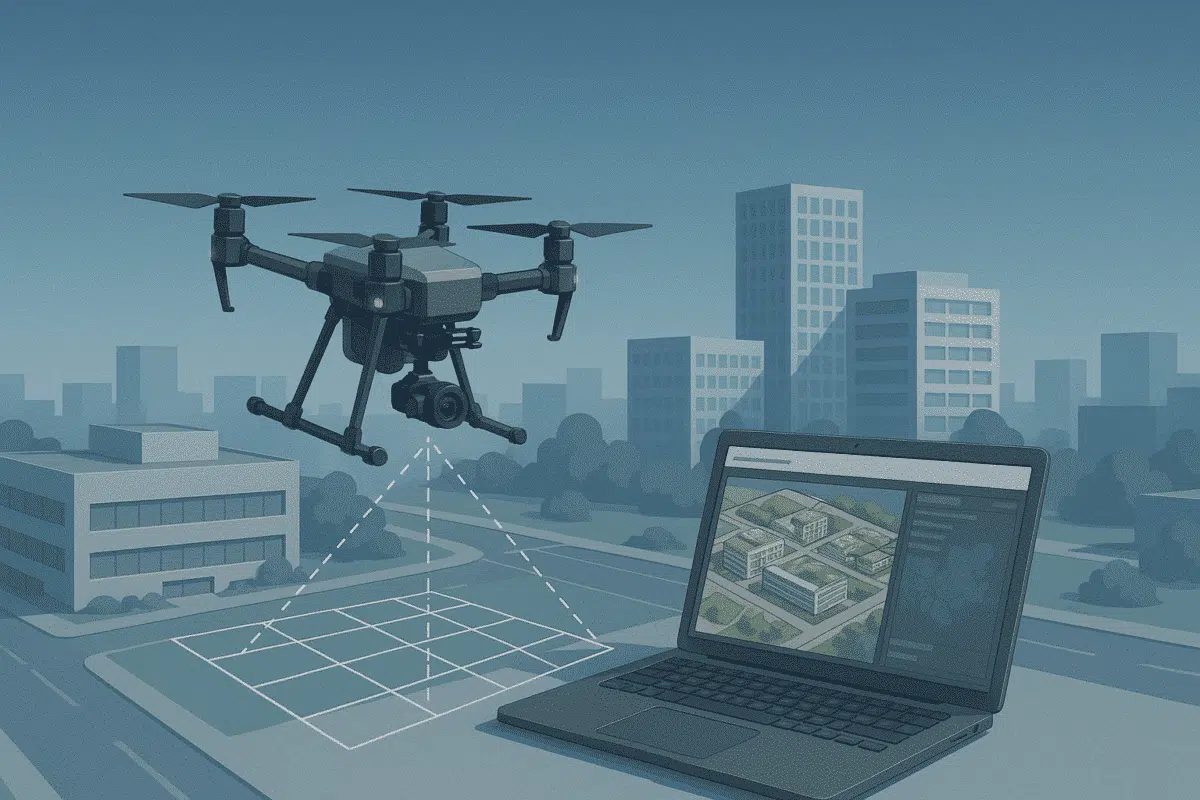
Agisoft Metashape is one of the most powerful photogrammetry platforms available today, capable of turning aerial imagery into detailed 3D models, orthomosaics, and geospatial data products. Its versatility and precision make it the go-to choice for professionals in mapping, construction, agriculture, archaeology, and environmental monitoring.
However, the quality of your outputs depends heavily on how well you plan and execute your aerial survey. Poor flight planning, inconsistent image overlap, or incorrect camera settings can significantly reduce accuracy and increase processing time. This guide shares expert aerial survey tips for Agisoft Metashape — helping you capture the best data and get professional results every time.
1. Plan Your Flight with Precision
The foundation of a successful aerial survey is careful planning. Flight planning determines the quality and completeness of the dataset that Metashape will later process into 3D outputs. Here are key considerations to get it right:
Choose the Right Altitude and Ground Sampling Distance (GSD)
Altitude directly affects the resolution of your final model. Flying higher covers more ground per image but reduces detail, while flying lower increases resolution but requires more images. Aim for a GSD of 2–5 cm/pixel for mapping and 3D reconstruction tasks. Adjust altitude according to your camera sensor and focal length to achieve the desired GSD.
Maintain Consistent Image Overlap
Overlap is critical for accurate photogrammetry. Without enough overlap, Metashape may struggle to align images, leading to gaps or distortions in your model. The standard recommendation is:
- Front overlap: 75–85%
- Side overlap: 60–70%
For complex terrains or dense vegetation, aim for the higher end of these ranges to ensure sufficient coverage and reliable feature matching.
Account for Terrain Variation and Elevation Changes
In areas with significant elevation differences, a fixed flight altitude above sea level can cause inconsistent GSD and coverage. Use terrain-following flight modes or digital elevation models (DEMs) to maintain a constant height above ground level and uniform image resolution.
2. Optimize Your Camera and Drone Settings
Even the best flight plan won’t yield great results if your imagery is suboptimal. Proper camera configuration ensures sharp, evenly exposed photos that Metashape can process effectively.
Use Manual Camera Settings
Avoid automatic exposure modes, which can lead to inconsistent brightness and contrast between images. Instead, set the following manually:
- Shutter speed: 1/800s or faster to minimize motion blur.
- ISO: As low as possible (100–400) to reduce noise.
- Aperture: f/5.6–f/8 for optimal sharpness.
Locking exposure ensures all images are captured with consistent lighting, improving alignment and texture generation in Metashape.
Use a Fixed Focus and Turn Off Autofocus
Autofocus can shift slightly between shots, causing alignment problems. Set the focus manually to infinity (or the appropriate distance for low-altitude flights) and disable autofocus for the mission.
Set the Correct White Balance
Consistent white balance helps avoid color variations in your orthomosaic or 3D texture. Set it manually according to lighting conditions (e.g., “Sunny” or “Cloudy”) instead of leaving it on auto.
Capture Images in RAW + JPEG
RAW images retain more dynamic range and detail, which can be useful for radiometric correction or advanced post-processing. JPEG files, meanwhile, allow for faster previews and easier data handling.
3. Consider Flight Patterns and Environmental Conditions
Flight paths and environmental factors significantly influence the quality of your aerial dataset. Metashape performs best when it has consistent, high-quality images from multiple perspectives.
Use Grid or Double-Grid Patterns for Mapping
A standard nadir grid flight (with the camera facing straight down) is sufficient for orthomosaics and DEM generation. For more complex surfaces or 3D models, consider a double-grid pattern (two perpendicular passes) to improve reconstruction accuracy.
Use Oblique Imagery for Vertical Structures
For buildings, cliffs, or vertical surfaces, incorporate oblique imagery by tilting the camera 20–35 degrees. Combining nadir and oblique images helps Metashape capture vertical geometry more accurately and produce richer 3D models.
Monitor Lighting and Weather Conditions
Lighting plays a crucial role in photogrammetry. Conduct surveys under consistent, diffuse lighting — ideally on overcast days or when the sun is high to minimize shadows. Avoid windy conditions, as they can cause drone instability and motion blur.
4. Use Ground Control Points (GCPs) for Higher Accuracy
While Metashape can produce good results without GCPs, adding them dramatically improves georeferencing accuracy and reduces distortions. Here’s how to integrate them into your workflow:
- Distribute GCPs evenly across the survey area, especially near edges and corners.
- Use high-precision GNSS or RTK/PPK systems to record coordinates.
- Mark GCPs clearly in your images during processing.
With GCPs, Metashape can achieve centimeter-level positional accuracy — essential for engineering, construction, and cadastral mapping projects.
5. Best Practices for Processing Aerial Data in Metashape
Once your aerial images are captured, following best practices during processing ensures the highest quality results.
Organize and Pre-Process Your Dataset
Before importing into Metashape, rename and organize your images logically (e.g., by flight path or capture sequence). Remove blurry, overexposed, or underexposed images to avoid alignment errors and reduce processing time.
Use High-Quality Settings for Critical Projects
While “Medium” quality settings are faster, “High” or “Ultra High” produce significantly better detail in point clouds and meshes. For professional deliverables, always prioritize quality over speed — especially for final outputs.
Check Alignment and Reprocess if Necessary
After photo alignment, review the sparse point cloud for gaps or misalignments. If necessary, adjust key point limits, camera calibration, or overlap and rerun the alignment step. Fixing issues early ensures downstream processes — like dense cloud generation and mesh building — are more accurate.
Export Deliverables in Appropriate Formats
Metashape supports a range of export options. Choose based on your application:
- Orthomosaic: GeoTIFF (BigTIFF for large projects)
- DEM/DSM: GeoTIFF or ESRI ASCII Grid
- 3D model: OBJ, PLY, or FBX
Ensure coordinate systems are properly defined during export to avoid georeferencing issues in GIS software.
Conclusion: Get the Most from Your Aerial Surveys with Metashape
Executing a successful aerial survey is about more than just flying a drone — it’s about planning, precision, and understanding how each decision impacts the final result. By applying the tips above — from optimizing flight altitude and overlap to using GCPs and processing images correctly — you’ll significantly improve the quality, accuracy, and usability of your outputs in Agisoft Metashape.
Whether you’re mapping infrastructure, monitoring environmental change, or creating digital twins, mastering aerial survey techniques ensures you unlock the full potential of photogrammetry. Start refining your workflow today, and watch the quality of your 3D models and orthomosaics reach new heights.
